

Introduction
Collections Automations are Orb’s self-serve system for recovering revenue from unpaid invoices. It lets you build multi-step workflows that combine payment retries, customer emails, and webhooks — targeted at exactly the invoices you choose, and triggered at any point in the invoice lifecycle. Set up automations to- Scale away the manual effort of chasing high-volume PLG/self-serve customers – without adding AR headcount
- Personalize white-glove outreach to marquee Enterprise customers
- Surface an early warning to the account team before a strategic renewal lapses
- Let Finance/RevOps own and optimize directly, without filing engineering tickets for iteration
- Route escalations straight into existing tools (Slack, CRM) so AR isn’t siloed in a billing dashboard
- Trigger downstream actions (entitlements, product upsells) to control the entire journey
This feature is available to all Orb customers on our Enterprise Plan. Contact Orb to learn about access and upgrade options.
Key components
Automation schedules
The schedule is a reusable template that defines exactly what happens to an unpaid invoice, and when.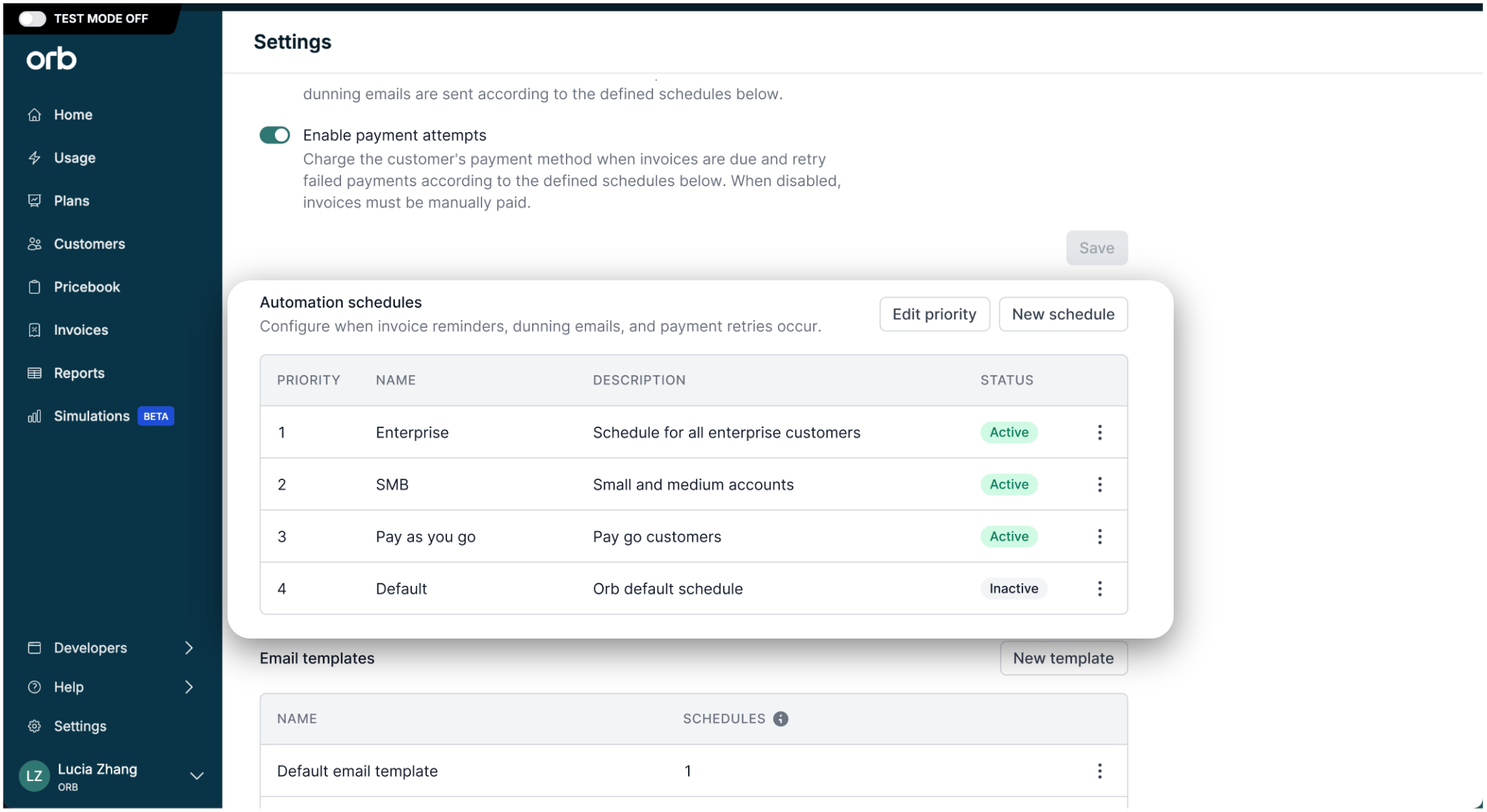
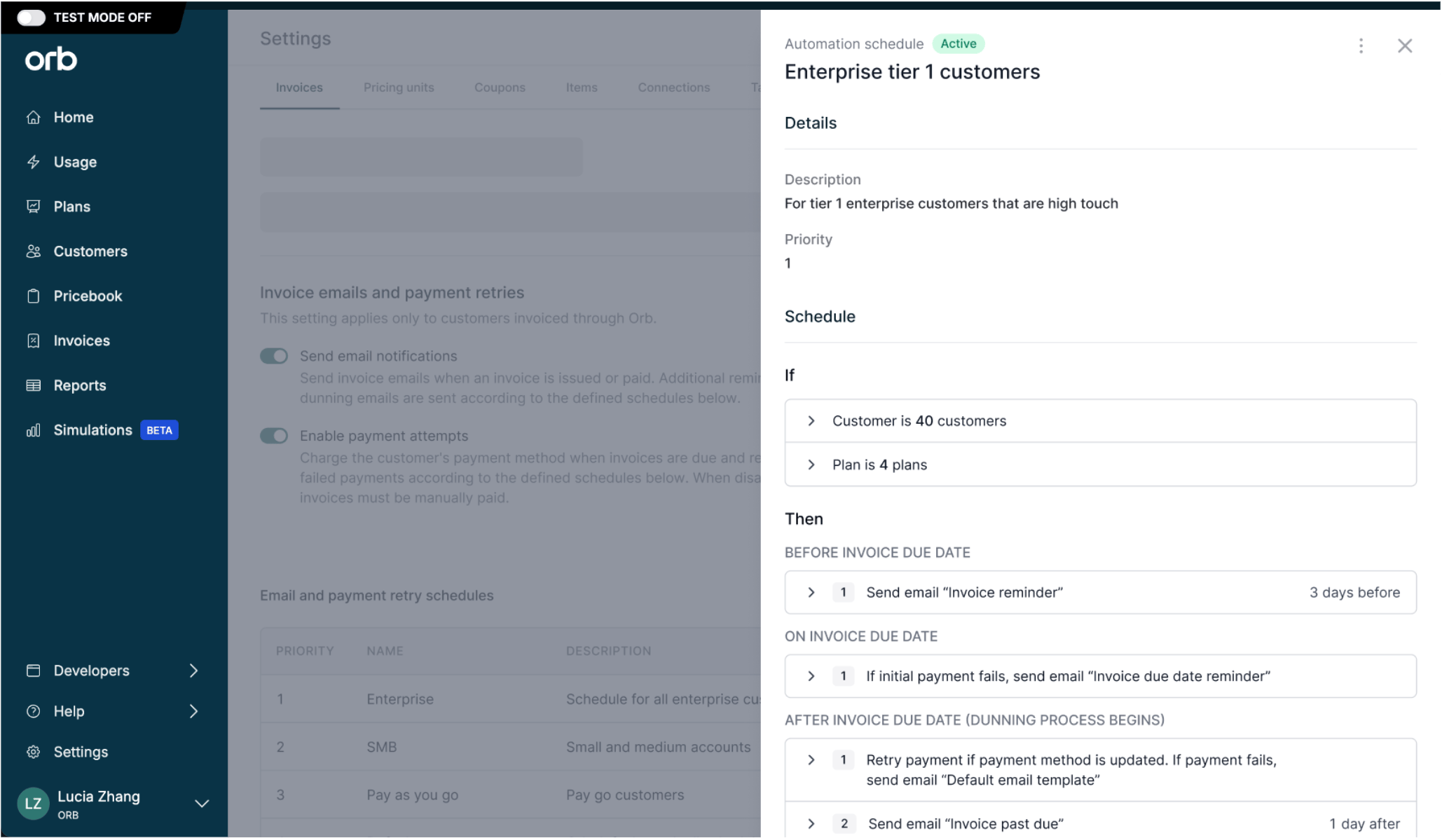
- Invoice criteria (“If”) – determines the cohort of invoices this automation is applied to when issued.
- Automation steps (“Then”) – configurable triggers for actions including payment attempts and retries, reminder emails, and webhooks.
- Timeline offsets – determines the days before or after the invoice’s due date. This is the “anchor” point.
- Priority – determines which automation applies to an invoice, if it meets the criteria for multiple automations.
Supported actions
- Payment attempts and retries
Eligible payment method must be configured before invoice issuance to take effect.
- Emails
- Webhooks
Email templates
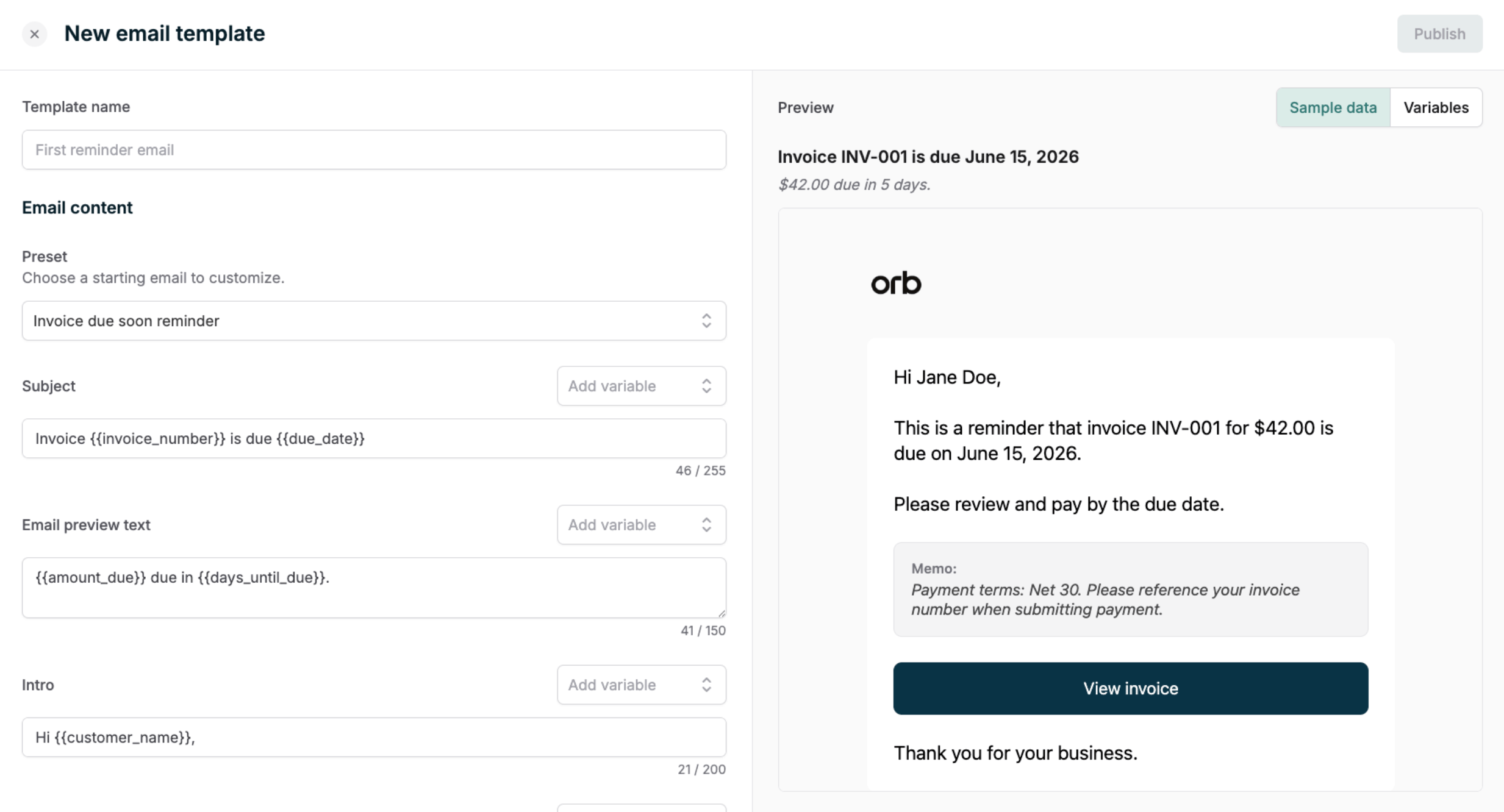
Create and save re-usable content to send as part of an automation. To help draft new email content, Orb provides editable preset templates to get you started. From there, add your own content, voice, and tone to the structured email sections. The subject, preview text, header, body, and footer are all customizable.Customizations to the email layout, support for additional branding, and media attachments are not supported at this time.
Collections settings
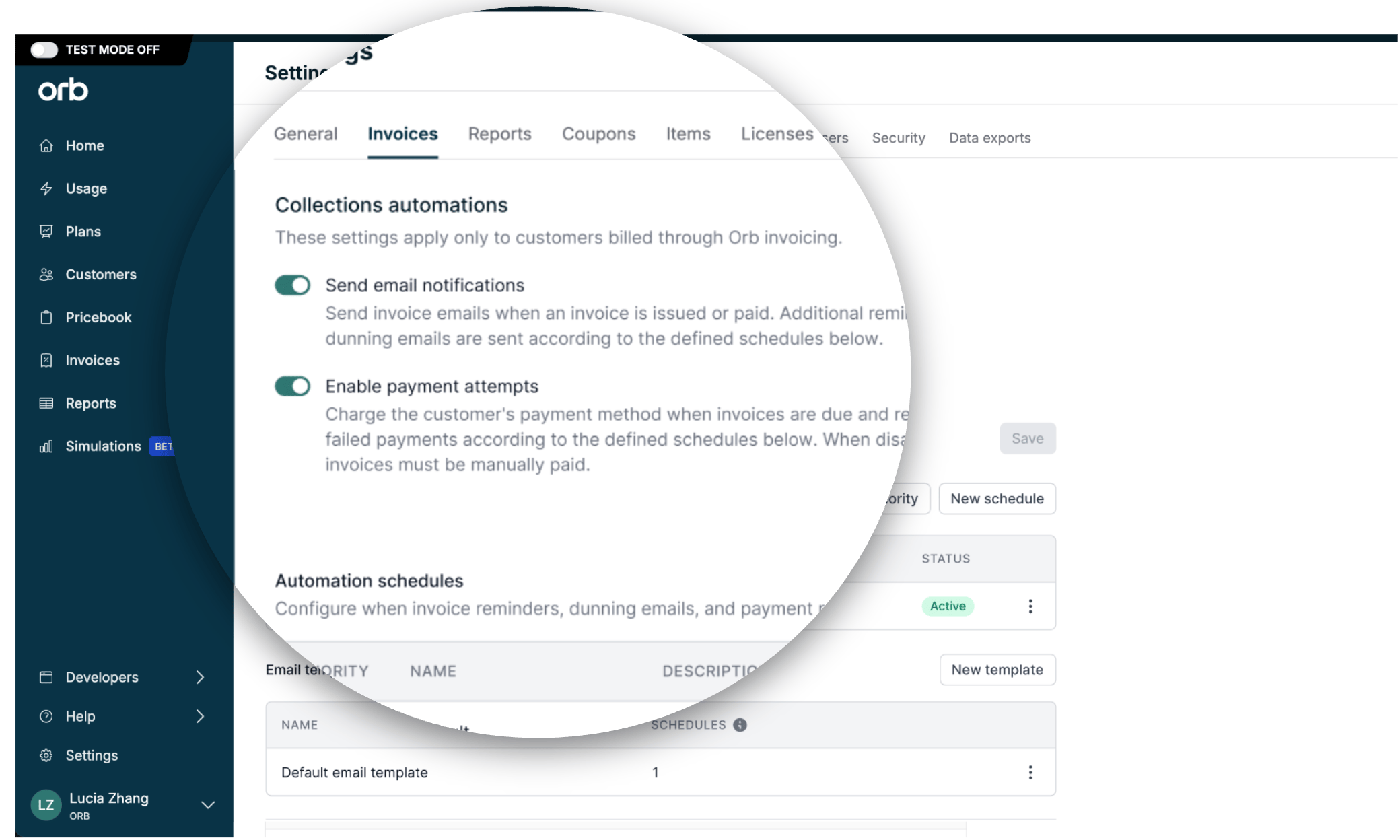
- Send email notifications governs whether Orb sends any invoice-related email — this covers the baseline transactional emails (invoice issued, invoice paid) as well as any templated emails defined in your automation schedules. If this is off, schedules can still run their retry and webhook actions, but any email steps are effectively silenced.
- Enable payment attempts governs whether Orb charges the customer’s payment method at all — both the initial charge when an invoice becomes due, and any scheduled retries after a failure.
Active schedules will fire independently of these settings.
Invoice detail
Every invoice that has ever had an automation applied to it shows an Schedule tab on its detail page, listing exactly which schedule was applied to it (e.g., “Enterprise customer follow up”) and every step in that schedule. Use this to confirm automation activity, and verify what’s happened and what’s still coming for that specific invoice. If an invoice is actively in an automation, a banner will appear at the top of the page. Once the automation elapses, the Schedule tab persists as a historical record. Invoices that never met the criteria for an active automation at time of issuance won’t show this tab at all.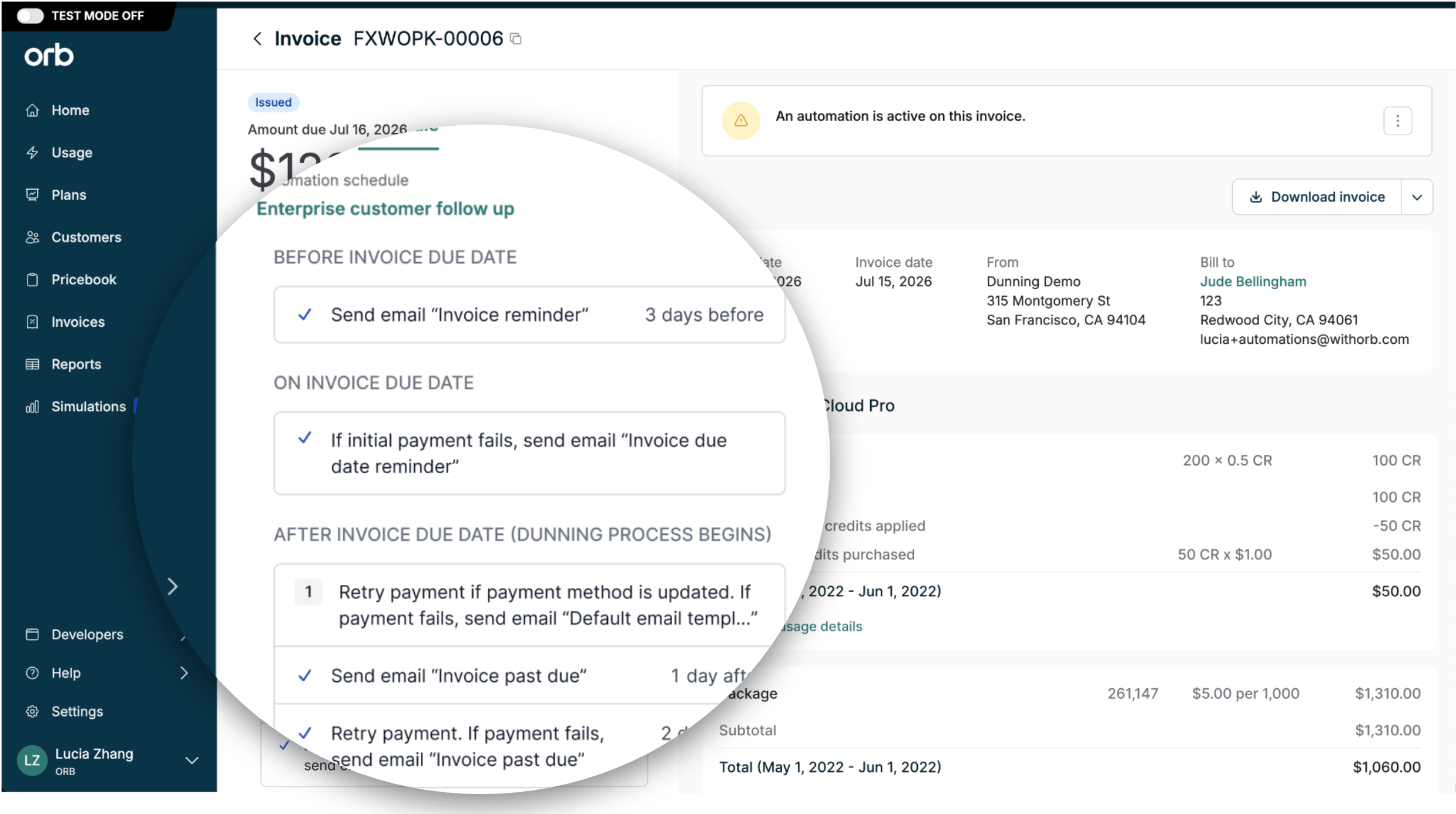
Create an automation
- Draft your email templates
- Create a new schedule
- Define your cohort (“If”)
“Sticky” schedules. This criteria is evaluated once, at invoice issuance, to decide whether an invoice is enrolled in this schedule.If the invoice’s attributes change later (e.g., payment method switches from ACH to card), it stays on its original schedule rather than jumping to a different one.
- Build out your steps and choose your actions (“Then”)
- Timeline offset — the anchor point in days before or after the invoice due date for each action.
- Actions — one or more of: a payment attempt/retry, an email (referencing a template from step 1), or a standalone webhook.
A note on payment processing timeYour payments provider controls how long it takes to respond to a payment attempt. Some payment methods — particularly ACH and wire transfers — can take significantly longer to process than card payments.As a result, Orb may not receive a success or failure response from your PSP before the next scheduled step in the automation fires. In these cases, the next step will run based on the invoice’s status at that time, which may not yet reflect the outcome of the prior payment attempt.
- Set priority
- Turn on account controls
- Save and activate
Manage an automation
- Updating priority
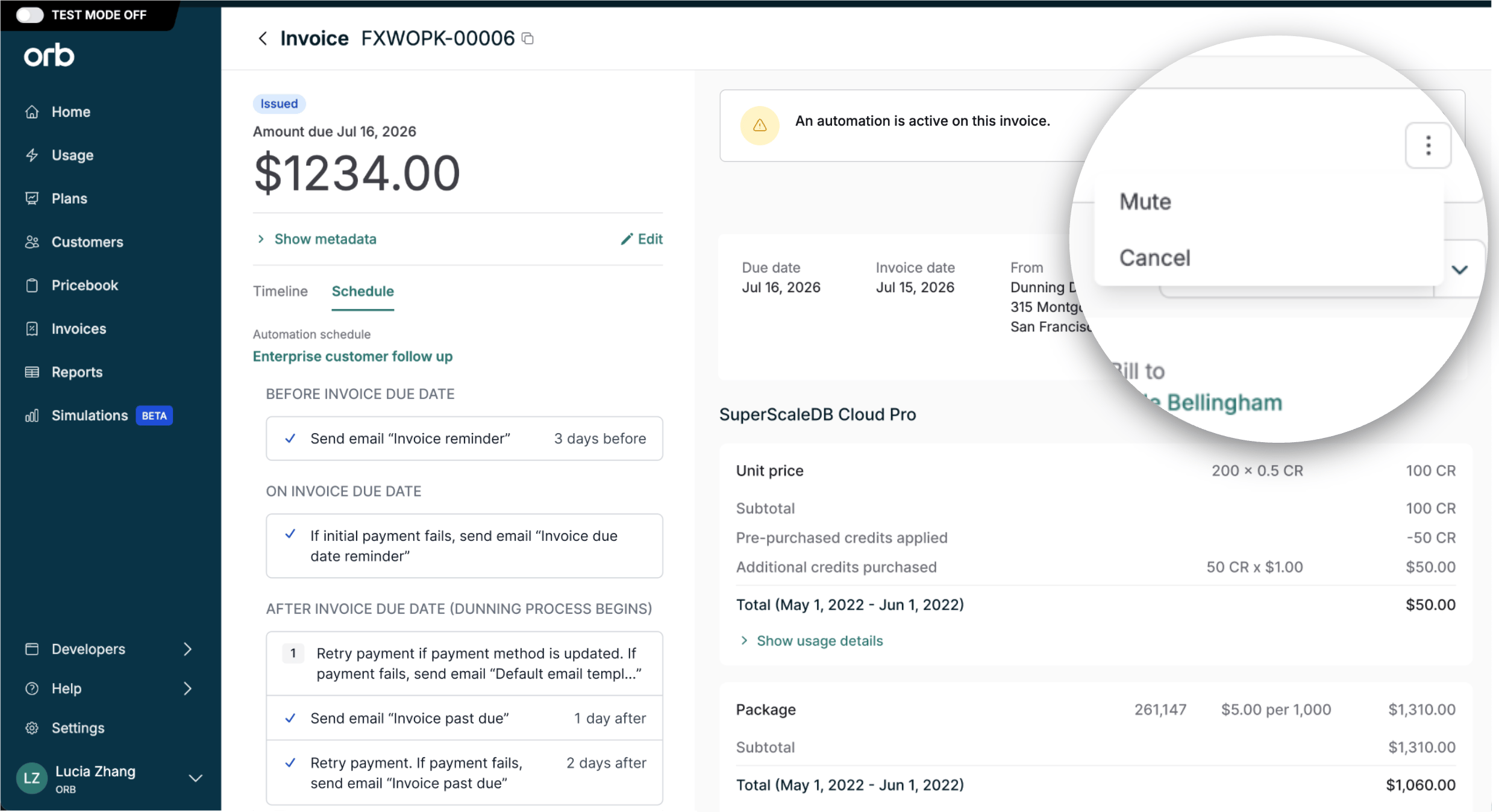
- Muting an automation
- Cancelling an automation
- Editing existing automation schedules
Webhooks
Webhooks are system-to-system notifications that can be used to operationalize customer-side workflows like triggering Slack notifications, sending custom emails, and reporting. A webhook is fired for every step in a collections schedule. The webhook payload includes:- Invoice information
- Schedule properties
- Action entries, by
action_type
Invoice information
Example
Schedule properties
Action entries within the actions array
action_type: send_email
The entry is always present in the actions array when a send_email action was configured in the step, regardless of whether an email was actually sent. Use it for logging (when sent: true), or use it to fire your own email service (when sent: false). The envelope’s invoice block already carries every variable Orb’s templates render against, so you don’t need additional context from the email entry itself to produce the equivalent email.
action_type: retry_payment
This entry signals that the retry attempt was executed: the job ran and the request was dispatched to the payment provider. The step webhook is emitted after the retry resolves, so the entry also reports the outcome of the attempt.
Final payment outcome also flows through the existing invoice.payment_succeeded or invoice.payment_failed webhooks when the provider’s async result arrives. The automation step webhook tells consumers what the automation did (it attempted a retry, and how it resolved). The payment webhooks tell them what the payment outcome was (success or failure, with decline reason for templates like payment_retry_failed).
Correlate the automation attempt with its eventual payment outcome via two keys (whichever is more useful for your flow):
- By specific attempt:
payment_provider_transaction_idis the same field that appears oninvoice.payment_succeeded/invoice.payment_failed. Match on this for unambiguous attempt-to-outcome pairing. - By invoice: both webhooks carry the full invoice object. If an invoice has only one in-flight retry, matching on
invoice.idalone is sufficient.
Example
Migrating from legacy dunning webhooks
Collections Automations supersedes Orb’s legacy dunning system and its webhook family (invoice.dunning_schedule_created, invoice.dunning_schedule_step_executed, invoice.dunning_schedule_ended, invoice.dunning_schedule_reset), which is deprecated.
Orb will continue emitting the legacy dunning events for automation activity, so existing consumers keep working while they migrate. These events are deprecated and will be discontinued after a deprecation window.
A few things to know:
- The two step events describe the same step execution. If you consume both during the migration, dedupe them — don’t count them as two distinct collection activities.
- Double emission is temporary. Once the deprecation window ends, the legacy dunning events stop firing and only
invoice.automation_schedule_step_executedremains, migrate your consumers to the new event before then.
Not currently supported
These related features and capabilities are not yet supported, but coming soon.- Programmatic API support for creating and managing automations.
- Data export resources