

- Setup and configure NetSuite. This ensures the integration is compatible with your NetSuite configuration.
- Install the Orb NetSuite Integration bundle. This deploys the custom records and scripts to enable the integration behaviors in NetSuite.
- Generate your NetSuite connection credentials. You’ll use these inputs to authenticate the Orb and NetSuite connection.
- Create an integration user. This is the login the integration uses to access NetSuite.
- Configure the integration in Orb. This is where you define what and how Orb syncs to NetSuite.
- (Optional) Manually configure custom records required for credit drawdown. If you use prepaid credits in Orb, additional setup is required to enable syncing credits and recognizing item-specific revenue in NetSuite.
Step 1: Setup and configure NetSuite
You will need to do this with a user with Administrator access to your NetSuite account.Align timezones
Optional: this setting is strongly recommended, but not functionally required for the integration.
- NetSuite: Setup > Company > Company Information
- Orb: Settings > General > Account time zone (contact Orb Support to change this)
Enable auto-generated numbers for customer creation
Optional: this setting is strongly recommended, but not functionally required for the integration.
Note: this is a NetSuite-only sequential record identifier, and does NOT modify any other customer identifiers you may already reference in NetSuite. It is also separate from the Orb customer ID, and is usually distinct from the external customer ID.
Enable features
Ensure the following features are enabled or selected. Setup > Company > Enable Features.Accounting preferences
Ensure the following accounting preferences are selected. Setup > Accounting > Accounting Preferences.Revenue Field Mapping
Orb syncs line-level service period start and end dates to custom transaction line fields installed via the bundle. This ensures the values are reliably preserved during transaction creation and transformation in NetSuite. To enable proper revenue recognition set up by your administrator, map these custom fields to NetSuite’s native revenue recognition start and end date fields. Setup > Accounting > Revenue Field Mapping > New. Ensure revenue recognition field mappings have been created to reference the custom service start and end dates synced from Orb.- Source record type = Transaction Line
- Automatically update target field value = T
If you’re also syncing fixed term subscriptions to NetSuite as a Sales Order, you’ll also need to configure:
- Source record type = Transaction Line
- Transaction type = Sales Order
- Automatically update target field value = T
Revenue Recognition Treatments
If you’re also syncing fixed term subscriptions to NetSuite as a Sales Order, you’ll also need to configure the following under Setup > Accounting > Revenue Recognition Treatments.- Name = Allocation Type Override
- Description = Overrides the allocation type to “Exclude”
- Allocation Type = Exclude
Recognition Treatment Rules
If you’re also syncing fixed term subscriptions to NetSuite as a Sales Order, you’ll also need to configure the following under Setup > Accounting > Recognition Treatment Rules.- Rule Name = Orb Append Allocation Type Override
- Recognition Treatment = Allocation Type Override
- Criteria, Field = Orb Order Line Timing
- Criteria, Value = Append
Item configuration
Orb supports syncing Non-Inventory and Service type item records. For each Item in NetSuite that corresponds to an item synced from Orb, ensure the following fields are set. Lists > Accounting > Items.Tax configuration
If you bill and collect tax on invoices in Orb, configure NetSuite to receive tax amounts for accurate reporting in NetSuite.We recommend configuring tax as part of the integration setup for every customer who doesn’t calculate or collect tax in NetSuite — including customers who don’t collect tax at all.
- Record creation — Orb creates the transaction with
taxrate1set to 0, establishing the tax placeholder on the record - Tax application — Orb performs a subsequent edit to the record, overwriting the correct Orb-calculated tax amounts per line
tax1ratebehavior so that NetSuite respects the tax information Orb sends, instead of recalculating tax based on its own rates.
Having per-jurisdiction override codes allows Orb respect NetSuite’s nexus validation rules, and produce correct, nexus-scoped compliance output for each transaction — the right GL account, the right tax agency, and country-specific tax reporting (for example, VAT reporting keyed off tax code properties) — without Orb or the integration performing any tax calculation itself.
- Create a new tax code for Orb under Setup > Accounting > Taxes > Tax Codes > New.
- Name it “Orb Tax Override”, (or similar).
- Set the tax rate to 0%.
- Choose the appropriate tax type and tax agency for your environment.
- Ensure it is in the correct subsidiary.
- We strongly do NOT recommend configuring any other optional fields in this override code – this adds additional validation logic for NetSuite’s tax engine, that pollutes the passthrough functionality.
- Do this for every registered jurisdiction in NetSuite where you have established nexus.
- Save.
Taxable transactions in CanadaBecause Canada has two separate taxes on the same transaction (GST/HST and PST), create a tax group and map that as the override for Canada instead of individual tax codes. This ensures both tax components sync and report correctly in the
taxrate1 and taxrate2 fields, respectively.Create a tax group for Canada under Setup > Accounting > Taxes > Tax Groups > New > Canada.Step 2: Install the Orb NetSuite Integration bundle
- Navigate to Customization > SuiteBundler > Search & Install Bundles.
- Search Orb NetSuite Integration Bundle. ID:
597717. (Ask Orb to approve bundle access before installation.) - Select the bundle from the results and click Install.
- Wait for the installation to complete. This may take a few minutes.
What’s in the bundle
- 14 transaction line custom fields + 6 body fields + 1 entity field
- 1 custom error record type
- Orb Integration Role (includes ~50 required permissions for minimum integration functionality)
- RESTlet + bundle installation script
These components are locked – you cannot edit/view field definitions.
Step 3: Generate your NetSuite connection credentials
You will need to do this with a user with Administrator access to your NetSuite account.1. Verify the script deployment from the bundle
- Navigate to Customization > Scripting > Script Deployments.
- Find the RESTlet deployment installed by the bundle and click on ‘View’.
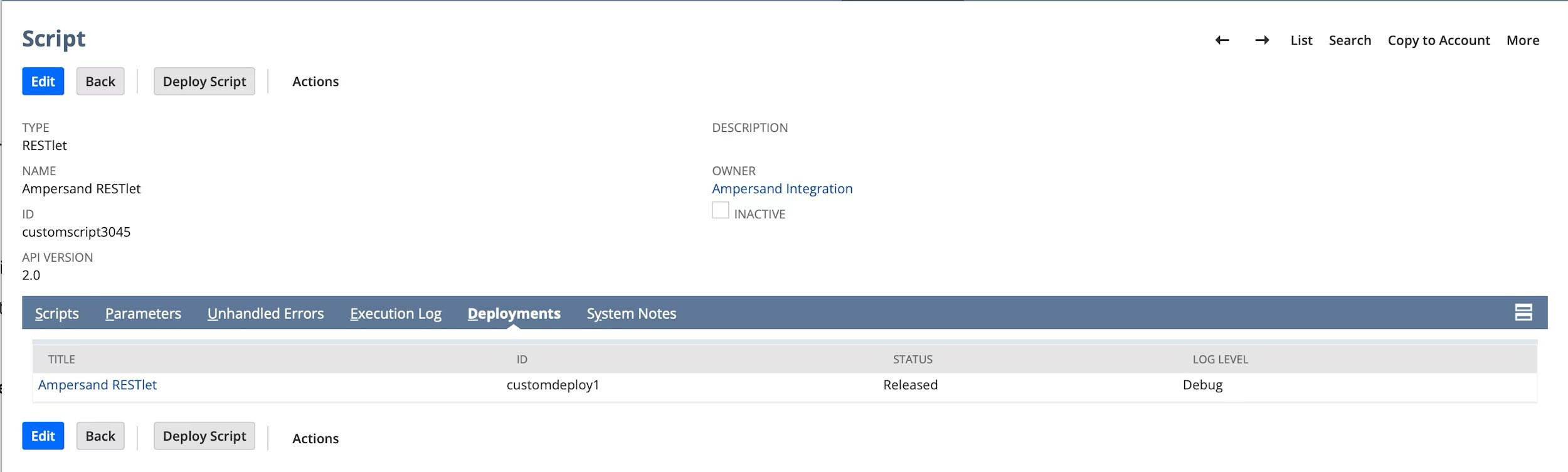
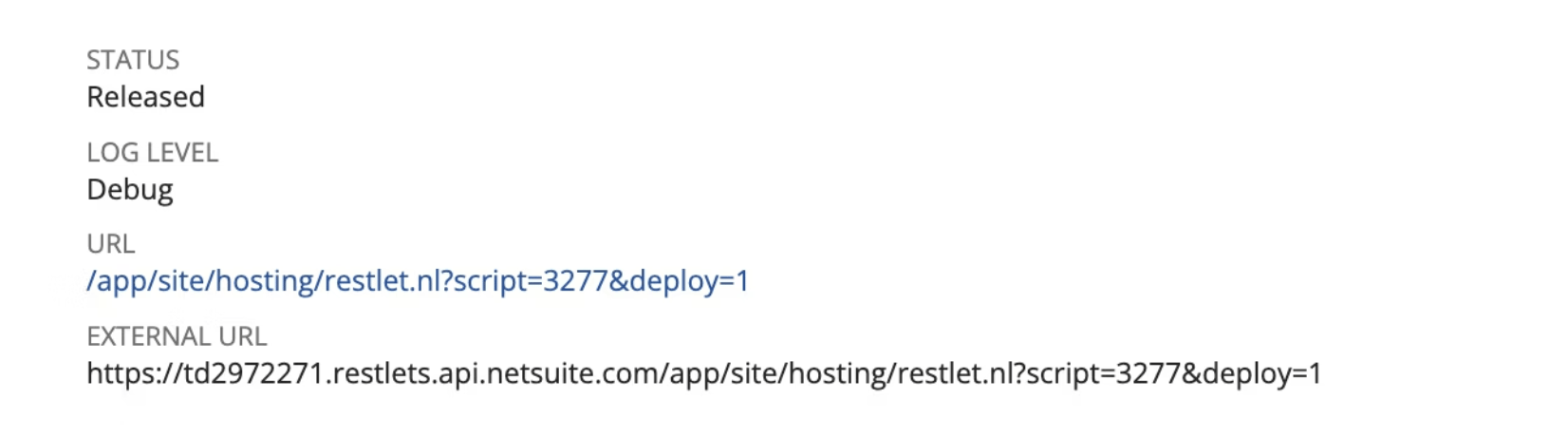
- Verify the deployment Status is Released.
- Click on the name of the script, then note the URL — you will need it for the installation step.
2. Create an integration record
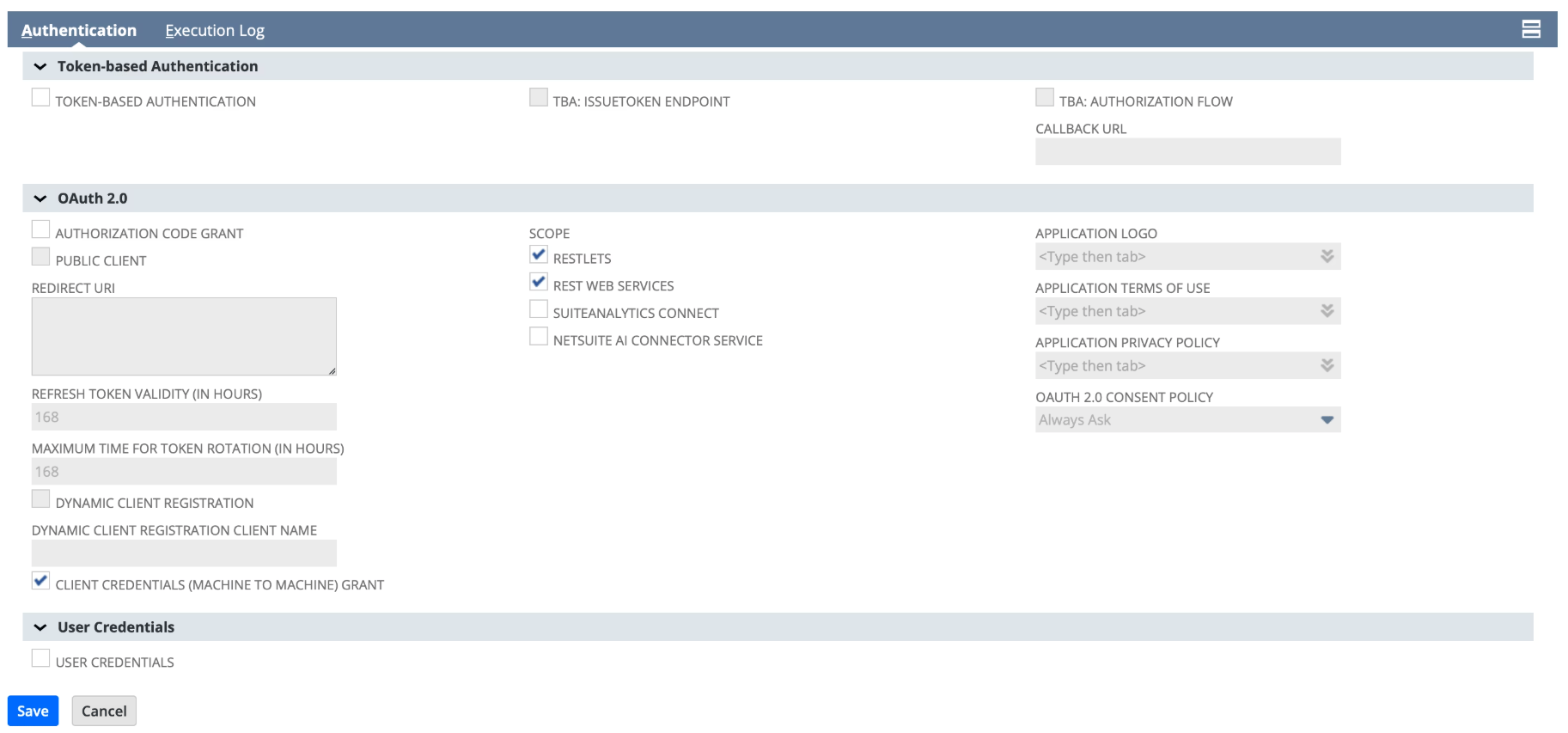
The integration record identifies the external application that will connect to your NetSuite account.- Navigate to Setup > Integration > Manage Integrations > New.
- Enter a Name for the integration (e.g. “Orb NetSuite Integration”).
- Under the Token-based Authentication section:
- Uncheck TBA: Authorization Flow
- Uncheck Token-Based Authentication
- Under the OAuth 2.0 section:
- Uncheck Authorization Code Grant
- Check Client Credentials (Machine to Machine) Grant
- Under Scope, check the following:
- RESTlets
- REST Web Services
- Click Save.
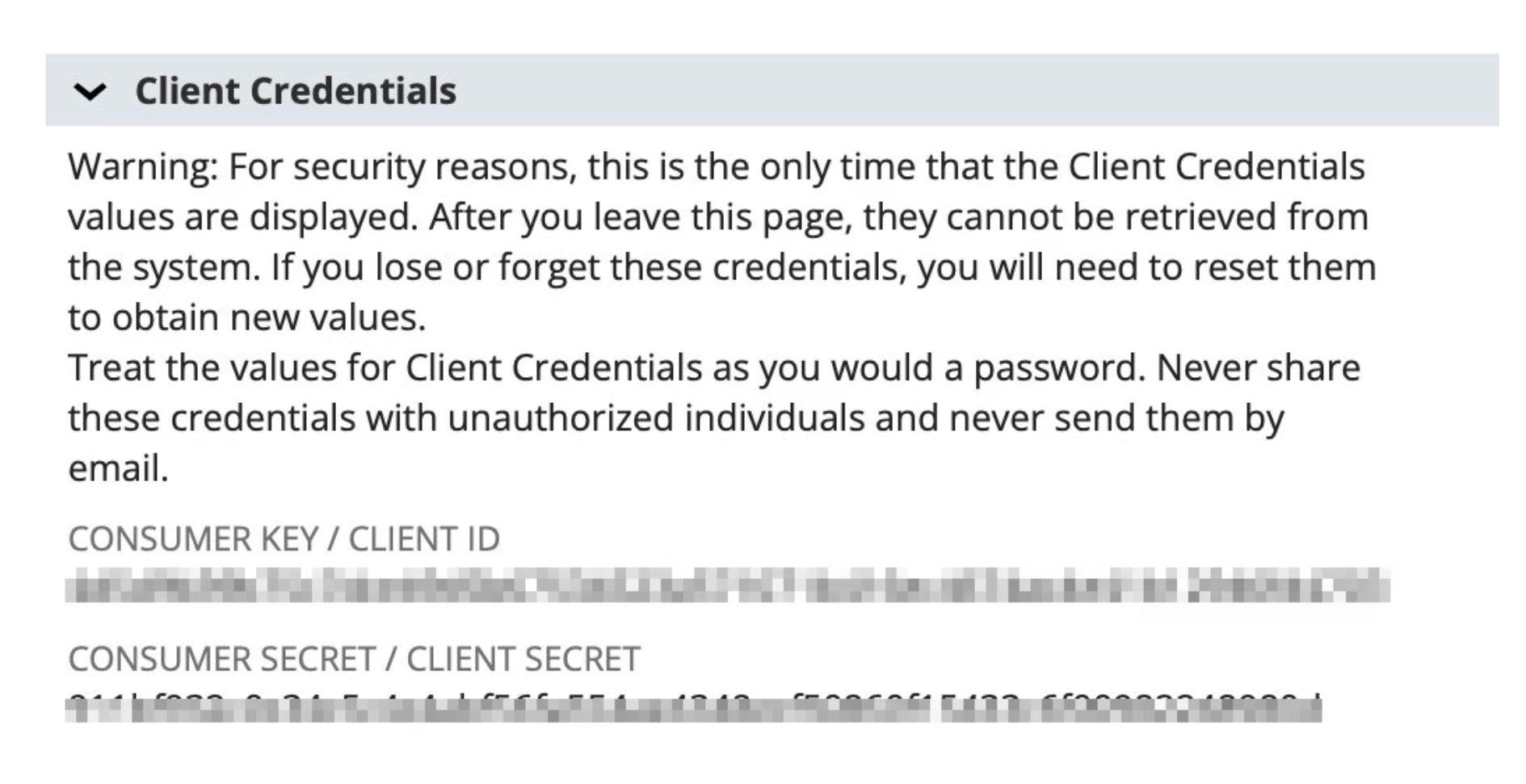
- After saving, NetSuite displays the Consumer Key / Client ID under the Client Credentials section. Copy this value and store it securely — it is shown only once and cannot be retrieved later.
3. Generate a certificate key pair
In this step you’ll use your computer’s terminal to create two files: a private key and a self-signed certificate. This is a one-time operation — if anything goes wrong, you can delete the files and start over. Before you begin, you need OpenSSL available in your terminal. macOS and most Linux distributions include it by default. On Windows, use Git Bash (bundled with Git for Windows, which includes OpenSSL), WSL, or install OpenSSL and ensure it is on yourPATH.
1. Create a folder and open a terminal in it
Create a new folder anywhere you’ll remember — your Desktop works fine. For example, create one called netsuite-keys. Then open a terminal inside that folder so the files you generate end up there:
- macOS: In Finder, right-click the folder and choose New Terminal at Folder. (If you don’t see this option, enable it under System Settings > Keyboard > Keyboard Shortcuts > Services > Files and Folders > New Terminal at Folder.)
- Windows: In File Explorer, right-click inside the folder and choose Open in Terminal or Open Git Bash here.
- Any OS (fallback): Open your terminal app, type
cd(with a trailing space), drag the folder from your file browser onto the terminal window, and press Enter.
% on macOS, $ on Linux/Git Bash, PS> on PowerShell), and press Enter. Run them one at a time.
private-key.pem— Your private key. You will base64-encode this and share it when installing the integration.cert.pem— Your public certificate. You will upload this to NetSuite.
cert.pem — the files were created in whichever folder your terminal was open in.
If anything looks wrong — missing files, error messages, accidentally hit Enter too many times — just delete the files and run the commands again. The keys aren’t registered anywhere until you upload
cert.pem to NetSuite, so there’s no risk in starting over.private-key.pem:
LS0tLS1CRUdJTiBFQyBQUklWQVRFIEtFWS0tLS0t...). It will be required during the installation process.
Step 4: Create an integration user and authorize a M2M connection
Create an integration user We strongly recommend creating a dedicated NetSuite integration user for the Orb integration, rather than connecting with a personal administrator account. This keeps access predictable over time, and makes it easier to audit which changes are driven by the integration.- Create a new NetSuite user intended only for the Orb integration (for example, orb-integration@yourcompany.com).
- Assign an appropriate role to this user:
- For fastest setup, you can assign the pre-defined Orb Integration Role that ships with the Orb NetSuite Integration bundle (recommended).
- Navigate to Setup > Users/Roles > User Management > Employees (or Lists > Employees).
- Find and edit the employee record you want the integration to run as. This can be an existing user or a dedicated integration user.
- Go to the Access tab.
- In the Roles subtab, click Add.
- Select the custom role from the dropdown.
- Click Save.
- If your security team requires stricter scoping, you can instead create a custom role based on NetSuite’s permissions model, using our Required permissions section as a baseline.
- For fastest setup, you can assign the pre-defined Orb Integration Role that ships with the Orb NetSuite Integration bundle (recommended).
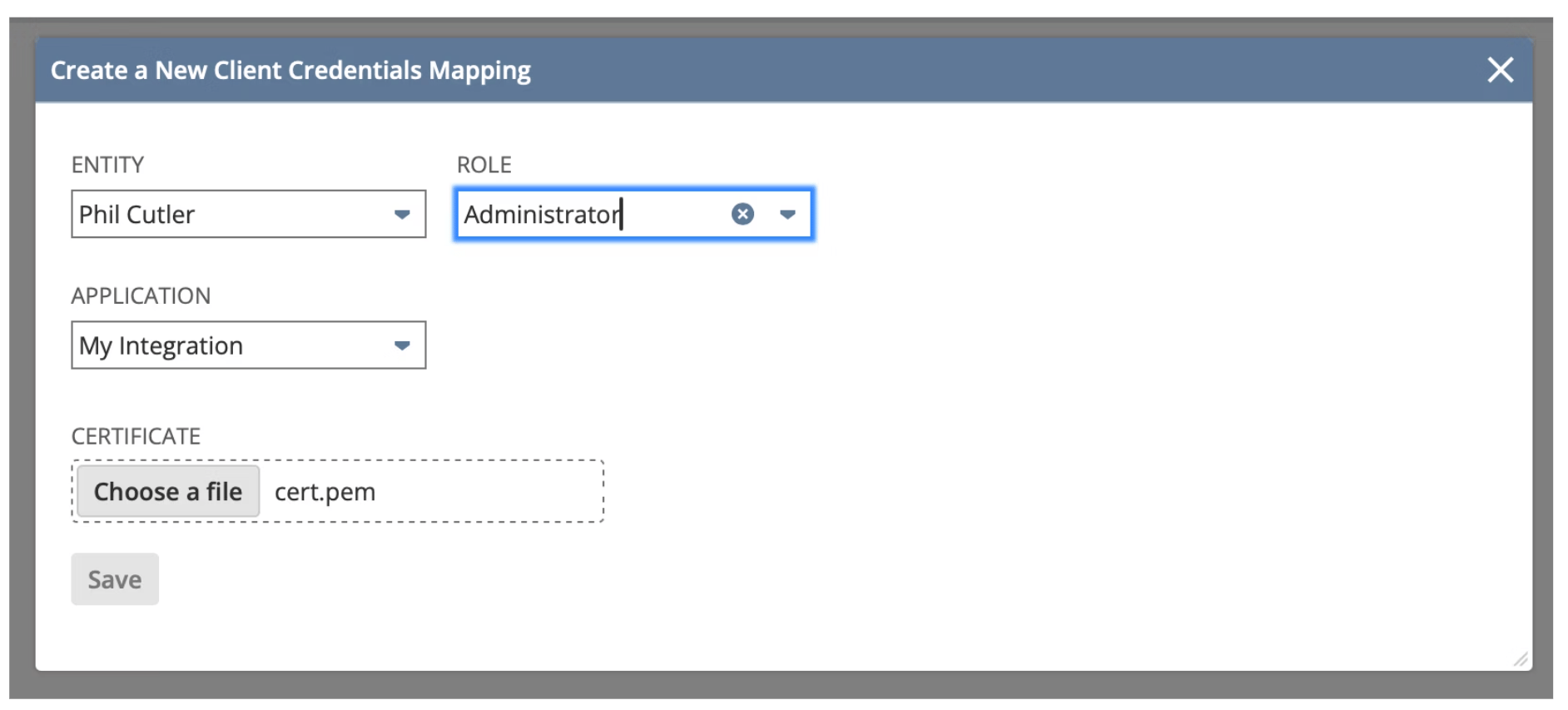
- Navigate to Setup > Integration > OAuth 2.0 Client Credentials (M2M) Setup.
- Click Create New.
- Configure the following fields:
- Entity: Select the integration user (from the previous step)
- Role: Select the custom role that the bundle installed. Please note that the role must include the Log in Using OAuth 2.0 Access Tokens permission.
- Application: Select the integration record you created.
- Certificate: Upload the
cert.pemfile you generated.
- Click Save.
- Copy the Certificate ID from the list — you will need this value when installing the integration.

Check that the
Valid Until date for the certificate is two years in the future. NetSuite allows a maximum validity of 730 days.Step 5: Configure the integration in Orb
Once your NetSuite bundle is installed and the dedicated integration user is ready, you’ll complete the connection from within Orb. This step links your Orb account to your NetSuite environment using that integration user and enables the asynchronous, one‑way sync from Orb → NetSuite.1. Navigate to the NetSuite integration in Orb.
2. Start the connection flow.
- Click Connect.
- When installing the integration, you will be prompted for a number of inputs:
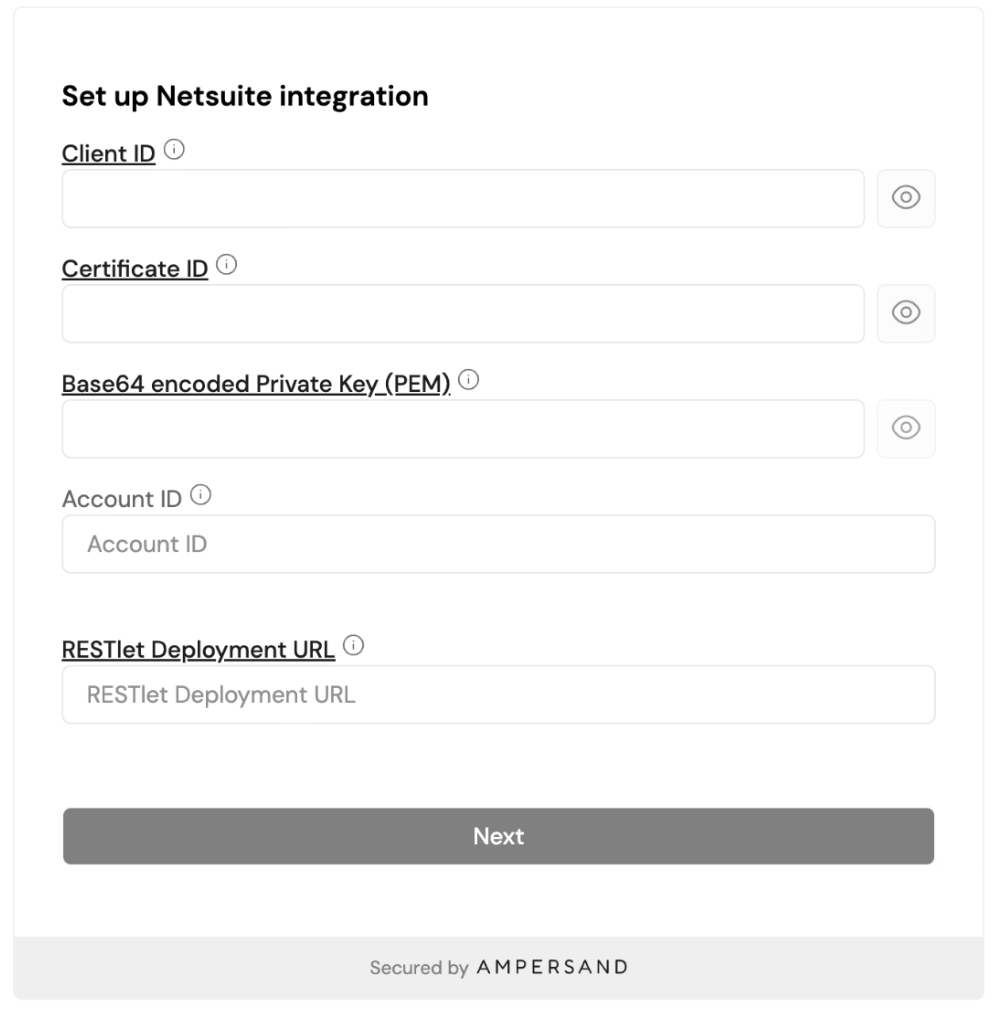
Sandbox accounts: If you are connecting a sandbox account, your Account ID may contain an underscore and suffix (e.g.
1234567_SB1). Provide it exactly as shown in your NetSuite URL or Company Information page.- Select and accept all permissions.
3. Configure sync behavior and mappings.
- After establishing a successful connection, define how Orb maps to your NetSuite account.
- Subsidiary → select which entity transactions are created in.
- Location → select a value if this segment is required on a NetSuite transaction. Else, the record will fail to sync.
- Select the appropriate tax override codes configured above for each jurisdiction where you have established nexus. Select a default override code for transactions outside established jurisdictions.
- Select a bank account per currency to determine where payments received in Orb should be recorded.
- Define the scope of transactions synced from Orb, using controls like minimum invoice date or amount.
- Configure how NetSuite handles transactions synced from Orb – enable to create sales orders and RMAs.
- Map items.
- A NetSuite Item controls how a line item behaves financially, including which GL account it impacts, how revenue is recognized, and how it’s handled operationally. This mapping determines how Orb line items behave when synced to NetSuite.
- The integration supports NetSuite items of type = Non-Inventory For Sale.
- Map customer metadata.
- Any customer-level metadata created before a customer is synced from Orb to NetSuite can be mapped and synced to NetSuite custom entity fields upon creation.
- This lets you keep key attributes (for example, account owner, billing segment, go‑live date, or internal IDs) aligned between systems without manual re-entry.
- This is a one-time initial sync upon customer creation in NetSuite.
- Subsequent updates to this field in Orb are not synced to NetSuite.
- New customer-level metadata added to the Orb customer record does not update in NetSuite.
- Review the configuration summary, then save. The review step summarizes the NetSuite setup, accounting settings, chart of accounts, and Orb-to-NetSuite mappings from the previous steps.
Step 6: (Optional) Manually configure custom records required for credit drawdown.
In order for Orb’s integration to recognize prepaid credit drawdown in NetSuite, the following GL accounts and items must be manually created and configured in NetSuite.Custom GL accounts
Setup > Accounting > Chart of Accounts > New.Validate your Customer Deposits GL accountRelatedly, while not a custom GL account you need to configure, a Customer Deposits GL account is required for the credit drawdown behavior to function as expected.To check:
- Navigate to Setup → Accounting → Chart of Accounts
- Confirm that an account with Name = Customer Deposits and Type = Other Current Liability exists. If it does, no further action is needed.
- Navigate to Transactions → Customers → Record Customer Deposit
- Populate the following fields:
- Customer — select any active customer, preferably a test customer
- Payment Amount — enter a nominal amount (e.g. $0.01)
- Any additional mandatory fields required by your NetSuite configuration
- Click Save
- Navigate back to Setup → Accounting → Chart of Accounts and confirm the Customer Deposits (Other Current Liability) account now appears.
- Once confirmed, navigate back to the test Customer Deposit record and delete it. The GL impact will be automatically reversed upon deletion.