> ## Documentation Index
> Fetch the complete documentation index at: https://docs.withorb.com/llms.txt
> Use this file to discover all available pages before exploring further.
# License configuration
# Introduction
Licenses allow you to model generic entitlements in Orb, where usage can be attributed to a unique license for a billing period. The most common application of licenses is to model seat-based pricing in Orb, like for Anthropic Claude or OpenAI Codex, but can be extended to represent anything from bots, agents, workflows, machines. etc
With licenses, you can:
* Track per-seat activation rates
* Report and display individual usage on your customer dashboards
* Represent seat charges with a dedicated and more full featured billing abstraction
 # Key components
## License type
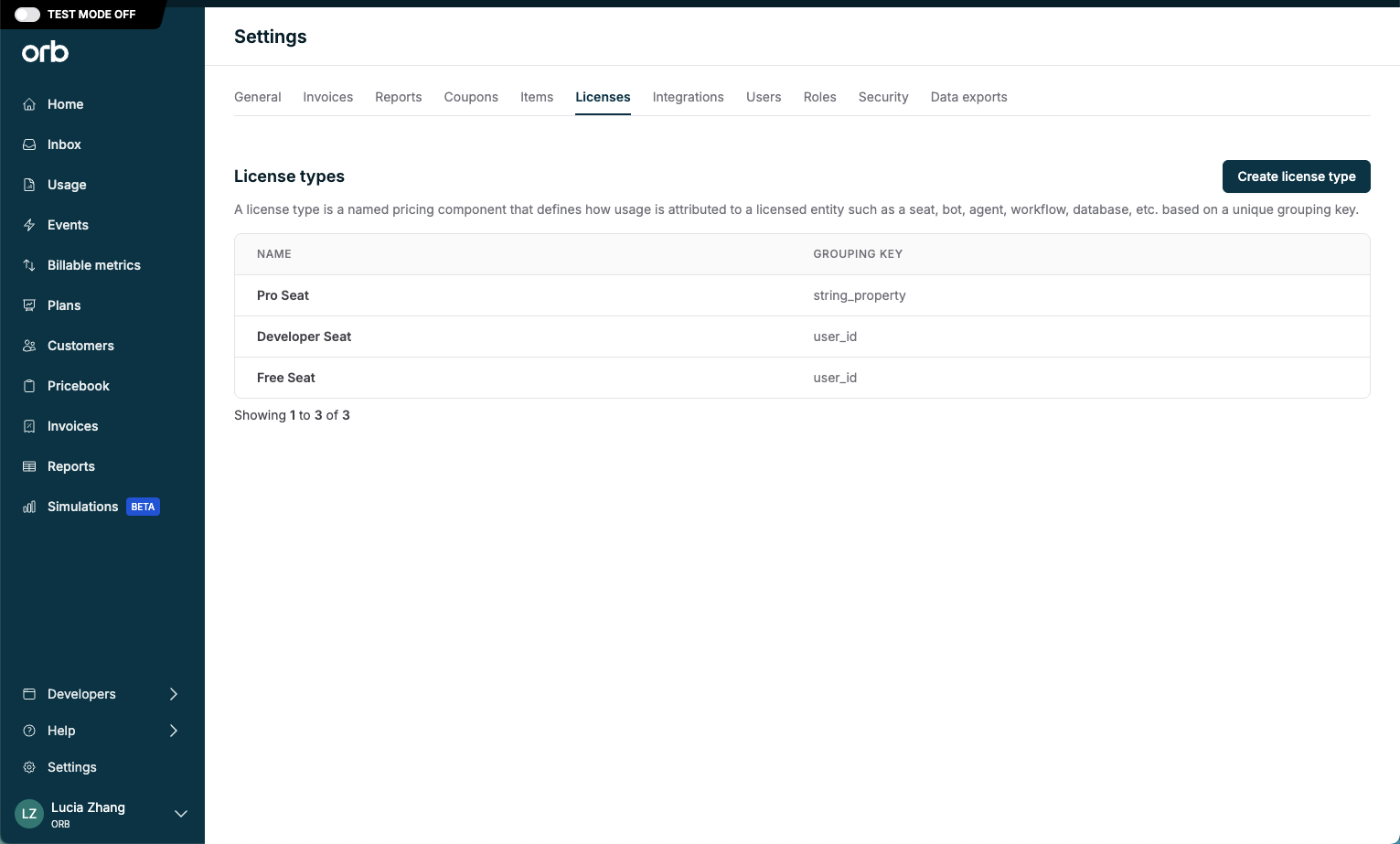
A license type is a named pricing component that tells Orb how to attribute usage events to a licensed entity (such as a seat, bot, agent, workflow, machine, etc.). Each license type is defined by a license grouping key – this is a unique event property that identifies which license a usage event belongs to.
Example: If your plans have multiple seat types (Pro, Developer, or Free), create one license type per seat type in Orb. Usage events with a key value pair of `pro_seat` = `john_doe` will attribute those events to John’s Pro license.
License types are configured in [Settings](https://app.withorb.com/settings?tab=licenses), and can be globally used across all plans and subscriptions.
# Key components
## License type
A license type is a named pricing component that tells Orb how to attribute usage events to a licensed entity (such as a seat, bot, agent, workflow, machine, etc.). Each license type is defined by a license grouping key – this is a unique event property that identifies which license a usage event belongs to.
Example: If your plans have multiple seat types (Pro, Developer, or Free), create one license type per seat type in Orb. Usage events with a key value pair of `pro_seat` = `john_doe` will attribute those events to John’s Pro license.
License types are configured in [Settings](https://app.withorb.com/settings?tab=licenses), and can be globally used across all plans and subscriptions.
 ## License price
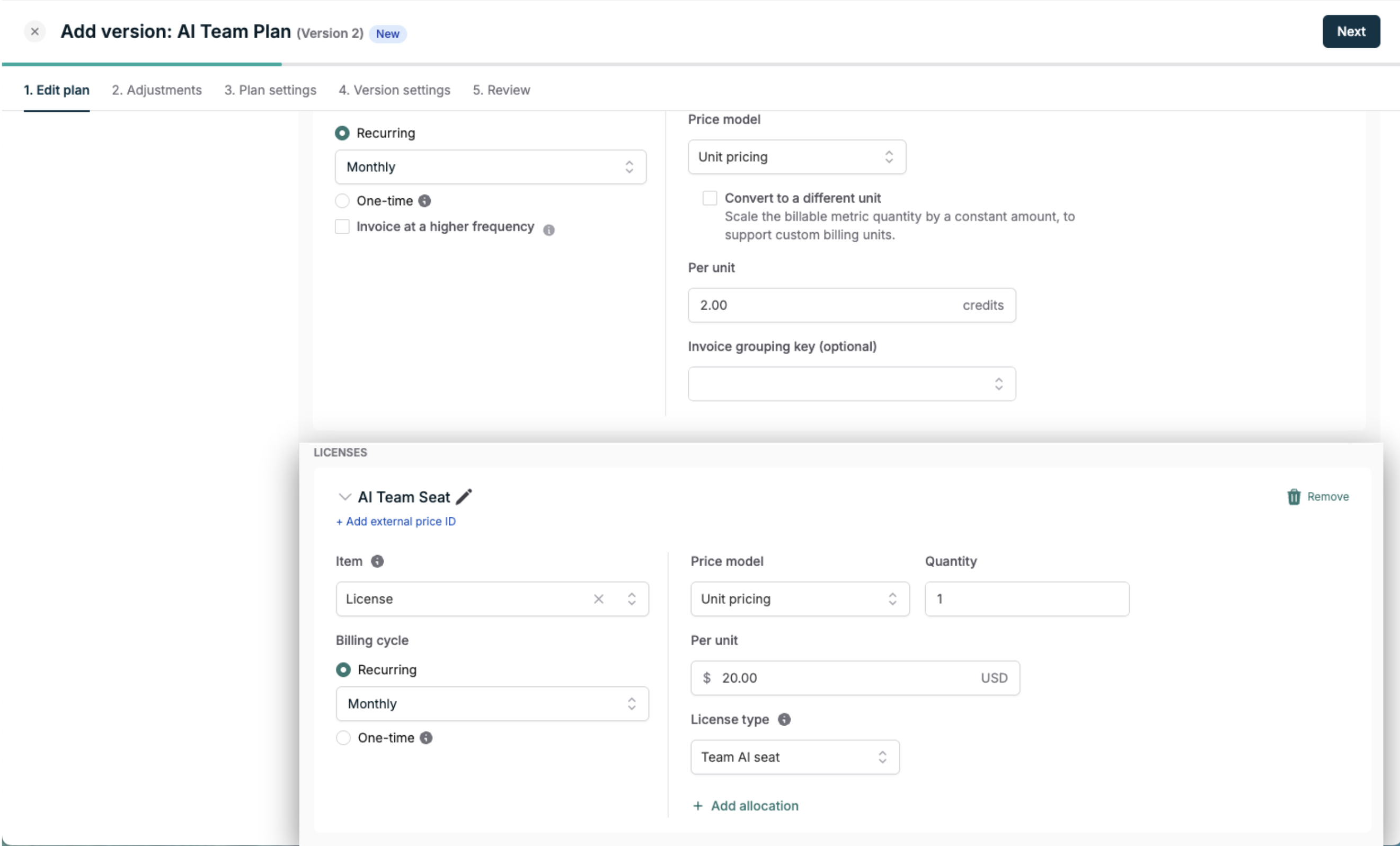
A license price is a fixed-fee price that represents the cost of a single entitlement on a subscription. It is explicitly tied to a license type. It defines how much to charge per license per billing period, and the quantity of licenses to provision.
Add a license price when [creating a new plan](https://docs.withorb.com/product-catalog/build-catalog) to provision licenses on subscriptions.
Currently, you can have one license price per plan (and per subscription). License prices can only be configured on plans with fixed fees and unit-based usage prices.
## License price
A license price is a fixed-fee price that represents the cost of a single entitlement on a subscription. It is explicitly tied to a license type. It defines how much to charge per license per billing period, and the quantity of licenses to provision.
Add a license price when [creating a new plan](https://docs.withorb.com/product-catalog/build-catalog) to provision licenses on subscriptions.
Currently, you can have one license price per plan (and per subscription). License prices can only be configured on plans with fixed fees and unit-based usage prices.
 [Custom invoice grouping](https://docs.withorb.com/invoicing/structure#custom-invoice-grouping)**s** of usage line items is not available for plans with a license price at this time.
## Usage
To attribute usage to a specific license, your usage events must include both the **license grouping key** defined by the license type, and the **license value** for the individual license as a defined property of the event. Orb uses this key value pair to determine which license a usage event should draw down from.
Example: If your license type references `user_id`, a usage event for user *John Doe* should include:
* **license grouping key:** `user_id`
* **license value:** `john_doe`
Sample payload:
```
{
"idempotency_key": "",
"event_name": "usage_event",
"external_customer_id": "",
"customer_id": "",
"timestamp": "2026-01-01T00:00:00.000000Z",
"properties": {
"user_id": "john_doe"
}
}
```
Orb will then attribute that usage to the license associated with `user_id` = `john_doe`, upon license activation.
For help [getting started with event ingestion](https://docs.withorb.com/events-and-metrics/event-ingestion#events-and-metrics), check out our docs.
# License lifecycle management
## License management
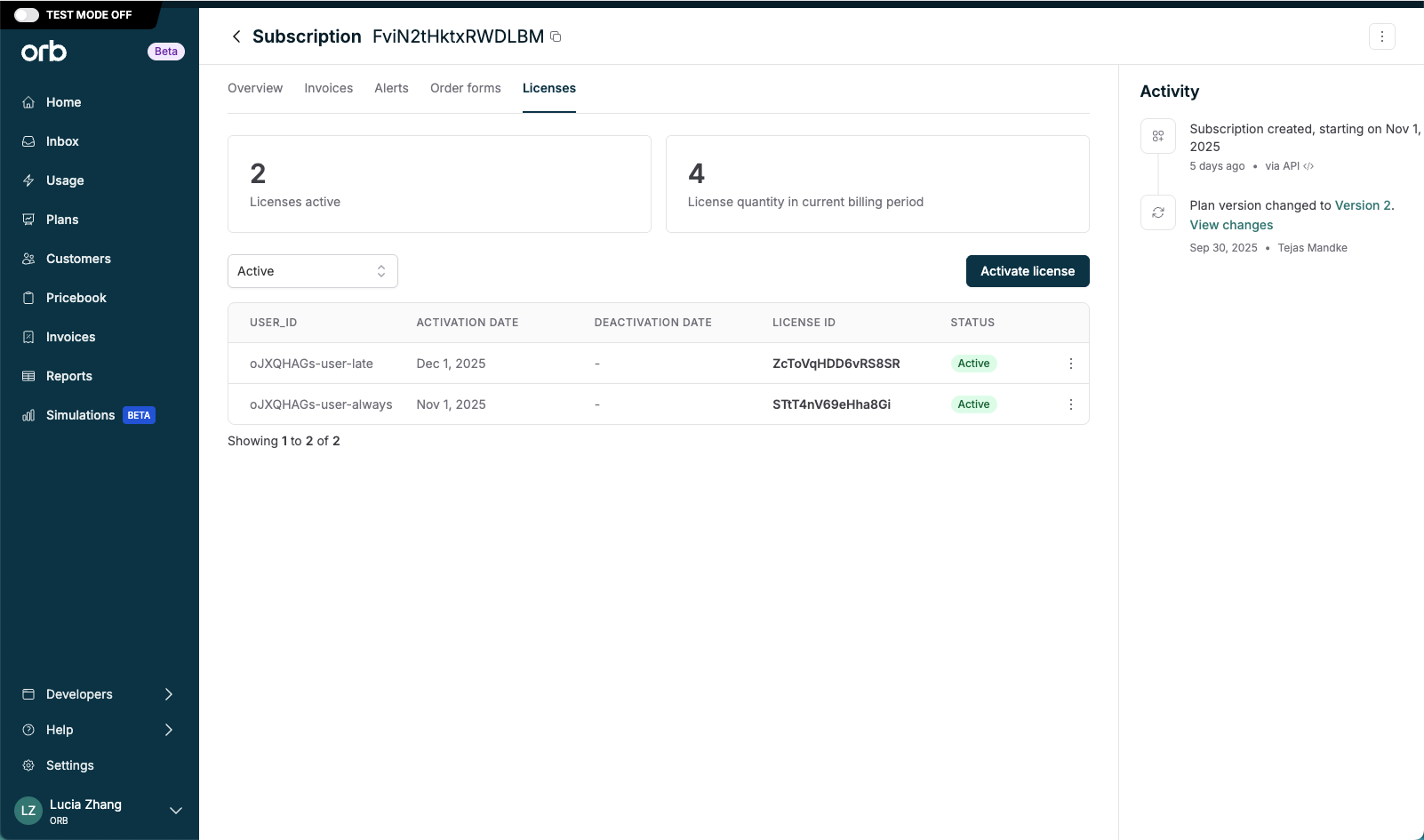
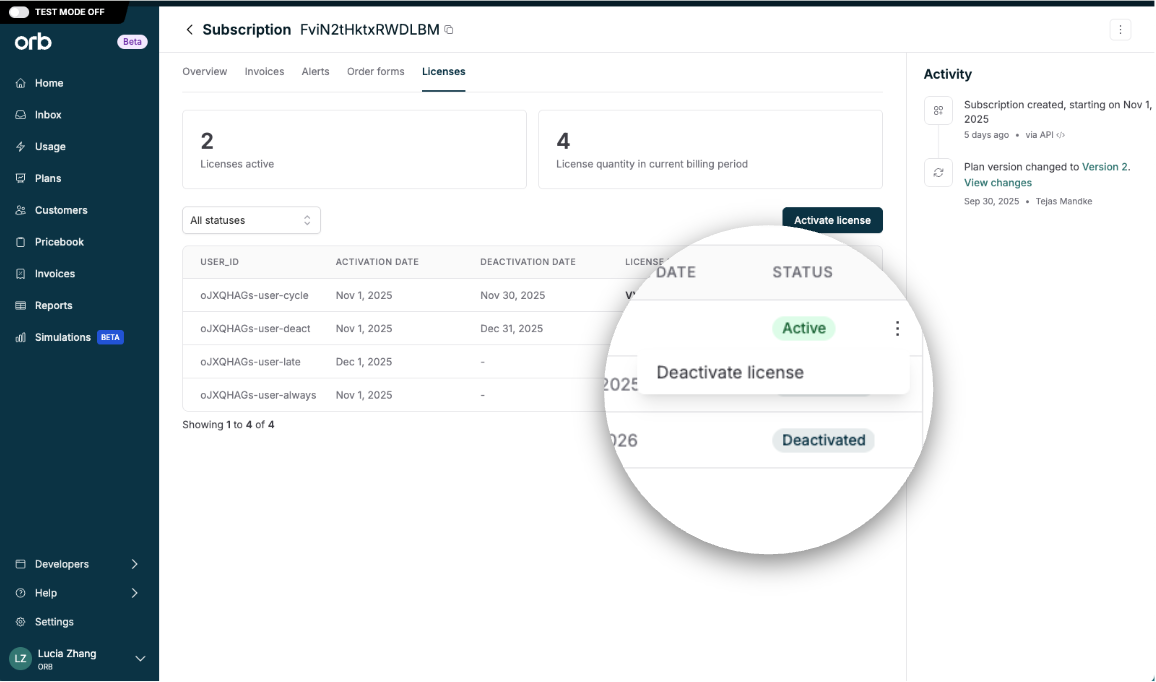
When a customer subscribes to a plan that includes licenses, the subscription automatically gains a Licenses tab.
This tab is your command center for managing licenses. You can activate, deactivate, and track licenses across the subscription. It also serves as a reporting surface, showing all provisioned licenses and their current status in one place.
## License activation
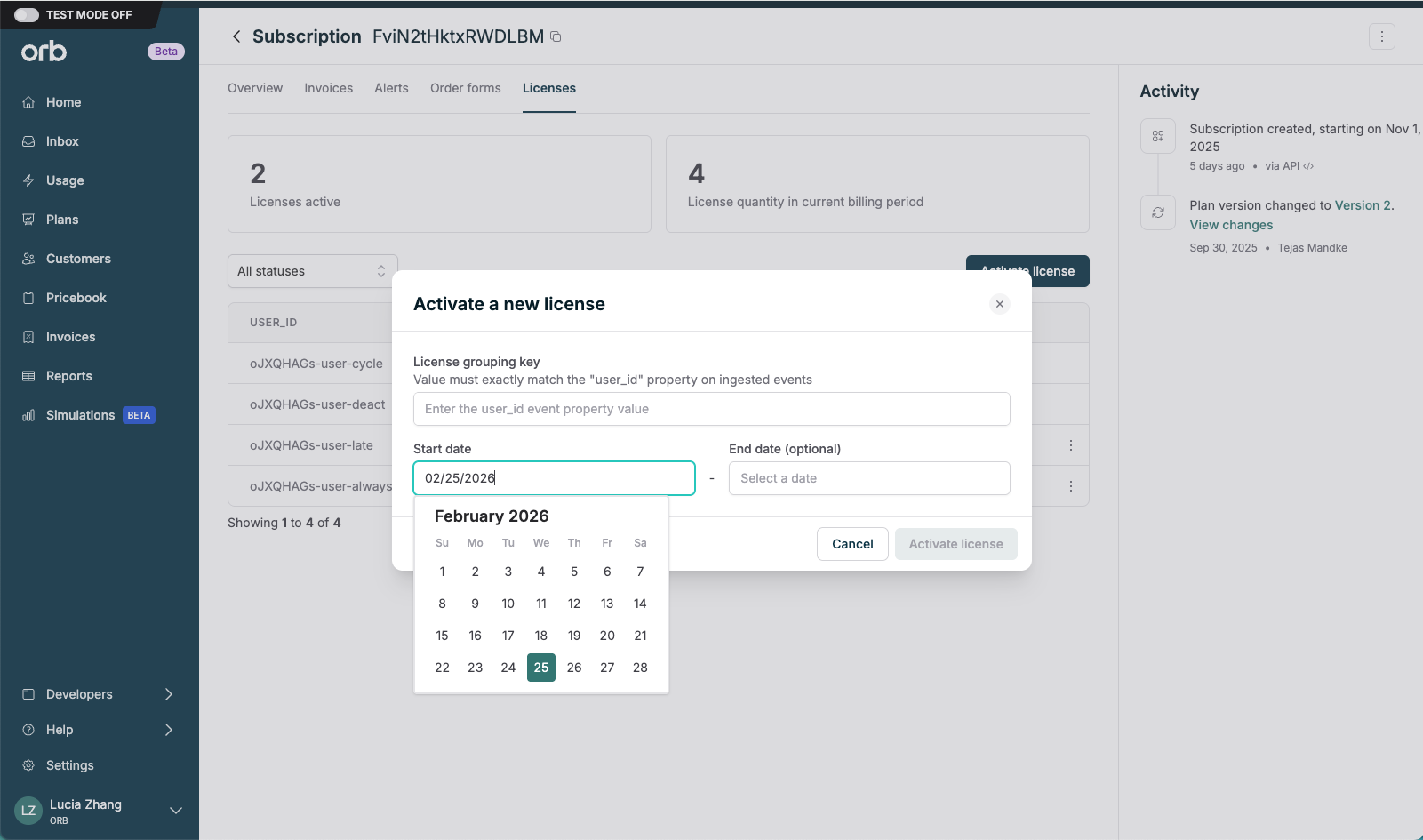
Activating a license in Orb is the mechanism by which usage will start being attributed to that license, given a unique license grouping key to register that license. Actual activation time is date aligned – any usage events ingested will be attributed to that license starting at 00:00 of the activation date in the customer's timezone.
Example: For a license type that references `user_id`, activate a license for *John Doe* by inputting `john_doe` as the license value. Orb will then attribute that usage to the license associated with `user_id` = `john_doe`.
This can be done in-app, or programmatically via [APIs](https://docs.withorb.com/api-reference/license/create-a-new-license-for-a-user).
Licenses activated immediately become status “Active. Licenses with a scheduled activation date in the future become status “Inactive”, but will become “Active” on the activation date.
[Custom invoice grouping](https://docs.withorb.com/invoicing/structure#custom-invoice-grouping)**s** of usage line items is not available for plans with a license price at this time.
## Usage
To attribute usage to a specific license, your usage events must include both the **license grouping key** defined by the license type, and the **license value** for the individual license as a defined property of the event. Orb uses this key value pair to determine which license a usage event should draw down from.
Example: If your license type references `user_id`, a usage event for user *John Doe* should include:
* **license grouping key:** `user_id`
* **license value:** `john_doe`
Sample payload:
```
{
"idempotency_key": "",
"event_name": "usage_event",
"external_customer_id": "",
"customer_id": "",
"timestamp": "2026-01-01T00:00:00.000000Z",
"properties": {
"user_id": "john_doe"
}
}
```
Orb will then attribute that usage to the license associated with `user_id` = `john_doe`, upon license activation.
For help [getting started with event ingestion](https://docs.withorb.com/events-and-metrics/event-ingestion#events-and-metrics), check out our docs.
# License lifecycle management
## License management
When a customer subscribes to a plan that includes licenses, the subscription automatically gains a Licenses tab.
This tab is your command center for managing licenses. You can activate, deactivate, and track licenses across the subscription. It also serves as a reporting surface, showing all provisioned licenses and their current status in one place.
## License activation
Activating a license in Orb is the mechanism by which usage will start being attributed to that license, given a unique license grouping key to register that license. Actual activation time is date aligned – any usage events ingested will be attributed to that license starting at 00:00 of the activation date in the customer's timezone.
Example: For a license type that references `user_id`, activate a license for *John Doe* by inputting `john_doe` as the license value. Orb will then attribute that usage to the license associated with `user_id` = `john_doe`.
This can be done in-app, or programmatically via [APIs](https://docs.withorb.com/api-reference/license/create-a-new-license-for-a-user).
Licenses activated immediately become status “Active. Licenses with a scheduled activation date in the future become status “Inactive”, but will become “Active” on the activation date.
 ## License deactivation
Deactivating a license in Orb is the mechanism by which usage will stop being attributed to that license at the **end** of the current day in the customer’s timezone.
## License deactivation
Deactivating a license in Orb is the mechanism by which usage will stop being attributed to that license at the **end** of the current day in the customer’s timezone.
 # Operator’s guide
To configure and manage licenses:
1. Ensure that [usage ingested](https://docs.withorb.com/events-and-metrics/event-ingestion#events-and-metrics) into Orb to includes a license grouping key property.
2. Create a global License Type in [Settings](https://app.withorb.com/settings?tab=licenses).
3. Create a new plan, and add a License Price.
4. Subscribe a customer to a plan with licenses.
5. Activate and manage licenses for that subscription.
# Operator’s guide
To configure and manage licenses:
1. Ensure that [usage ingested](https://docs.withorb.com/events-and-metrics/event-ingestion#events-and-metrics) into Orb to includes a license grouping key property.
2. Create a global License Type in [Settings](https://app.withorb.com/settings?tab=licenses).
3. Create a new plan, and add a License Price.
4. Subscribe a customer to a plan with licenses.
5. Activate and manage licenses for that subscription.