> ## Documentation Index
> Fetch the complete documentation index at: https://docs.withorb.com/llms.txt
> Use this file to discover all available pages before exploring further.
# Invoice issuance
> Orb's invoice issuance system controls when and how invoices transition from draft to issued status. This guide covers configuration options and issuance behavior for different invoice types.
## How invoice issuance works
Invoice issuance is the process of finalizing a draft invoice and making it available to customers. Once the invoice is issued, its values cannot be changed.
When an invoice is created in Orb, it starts in draft status. Depending on your account settings and customer settings, invoices will either:
* **Auto-issue**: Automatically transition to issued status after a grace period
* **Require manual approval**: Remain in draft until manually issued via the dashboard or API
Invoice issuance settings do not apply to one-off invoices created manually
The issuance process handles freezing values on the invoices. Only if configured, the following actions may also occur on the invoice:
* tax calculations through a configured tax provider
* payment method auto-collection through Stripe
* email delivery to the customer
## Draft vs. Action Needed statuses
**Draft**
* The initial state when an invoice is created
* Indicates the grace period has not passed, and is not eligible to be issued by Orb or the user
**Action Needed**
* A draft invoice that is eligible for manual issuance
* Shown in the dashboard when manual approval is required
* Indicates the grace period has passed, and the invoice can be safely issued
**Pending issue**
* An invoice that has been submitted for issuance and is being finalized asynchronously
* Can appear after manually issuing usage-based invoices or when Orb needs to avoid concurrent invoice updates
* Requires no additional action; Orb will complete issuance in the background
## Grace period and issuance timing
Orb applies different issuance timing based on invoice content to ensure accuracy and provide flexibility for corrections.
### Usage-Based Invoices
Invoices containing usage-based line items respect a grace period before becoming eligible for issuance:
* **Default grace period**: 12 hours after the invoice period ends
* **Purpose**: Allows time for late-arriving usage events to be processed
```
Invoice Period End → Grace Period (12h) → Buffer → Eligible for Issuance
```
### Fixed-Price Invoices
Invoices containing only fixed-price line items (subscriptions, one-time charges) have no grace period:
* **Immediate eligibility**: Available for issuance right after creation
### Partial Invoices
Invoices generated outside the normal billing cycle (e.g. threshold invoices):
* **No grace period**: Bypass the standard grace period
### Increment Credit Invoices
* Generated for single credit purchases or payment plans
* Auto-issues according to account or customer settings
## Account-level settings
Account-level settings control the default issuance behavior for all customers and invoices.
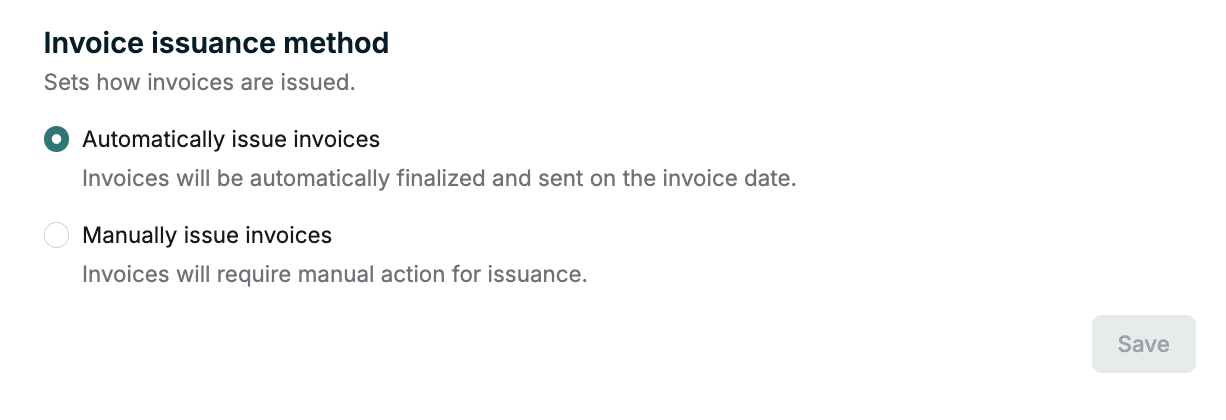 ### Manual vs Automatic Issuance
**Automatic Issuance**
* Invoices auto-issue after grace periods and buffers
* Requires no manual intervention
* Processed by Orb asynchronously
**Manual Issuance**
* All invoices require manual approval before issuance
* Invoices appear as "Action Needed" when eligible
* Provides control and review opportunity
* Recommended for enterprise billing scenarios
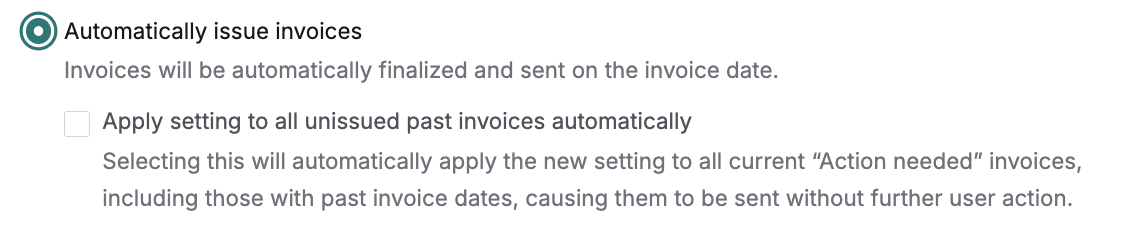
When changing from manual issuance to automatic issuance, you will have the option to apply the setting to all historical invoices. This will automatically issue any invoices that would have been eligible to issue. If unchecked, the setting will only apply to invoices with an invoice date after the time of the setting change.
### Manual vs Automatic Issuance
**Automatic Issuance**
* Invoices auto-issue after grace periods and buffers
* Requires no manual intervention
* Processed by Orb asynchronously
**Manual Issuance**
* All invoices require manual approval before issuance
* Invoices appear as "Action Needed" when eligible
* Provides control and review opportunity
* Recommended for enterprise billing scenarios
When changing from manual issuance to automatic issuance, you will have the option to apply the setting to all historical invoices. This will automatically issue any invoices that would have been eligible to issue. If unchecked, the setting will only apply to invoices with an invoice date after the time of the setting change.
 ## Customer-level settings
Customer-level settings enable you to override account defaults for specific customers, allowing for mixed billing workflows within a single account.
### Override Behavior
**Customer Override Options**
* **Inherit from account (Default)**: Use account-level setting
* **Automatic issuance**: Always auto-issue for this customer
* **Manual issuance**: Always manual approval for this customer
If the customer-level setting is specified to automatic or manual issuance, the customer's setting will not change, even if the account-level setting is changed.
### Inheritance Hierarchy
The system applies settings in order of specificity:
1. Account-level defaults
2. Customer-level overrides
### Use Cases
**Enterprise + Self-Serve Mix**
* Account default: Manual issuance
* Enterprise customers: Manual issuance (inherit)
* Self-serve customers: Automatic issuance (override)
**High-Touch Accounts**
* Account default: Automatic issuance
* VIP customers: Manual issuance (override for review)
* Standard customers: Automatic issuance (inherit)
### API Configuration
Update customer issuance settings via the customer update endpoint:
```json theme={null}
{
"auto_issuance": true // true = auto, false = manual, null = inherit
}
```
## Manual issuance process
When manual issuance is enabled, invoices require explicit action to transition from draft to issued.
### Dashboard Workflow
1. Navigate to the Invoices section
2. Filter for Action Needed invoices
3. Review invoice details and line items
4. Click Issue Invoice to finalize. Some invoices may briefly move to Pending issue while Orb completes finalization in the background.
### API Issuance
Issue invoices programmatically via the REST API:
```bash theme={null}
curl -X POST "https://api.withorb.com/v1/invoices/{invoice_id}/issue" \
-H "Authorization: Bearer $ORB_API_KEY"
```
**Requirements:**
* Invoice must be in draft status
* Grace period must have elapsed (for usage-based invoices)
* Cannot be used for invoices set to auto-issue
## Best practices
### Choosing Issuance Mode
**Use Manual Issuance When:**
* Complex usage calculations require review
* Custom pricing or contract terms need verification
* Regulatory compliance requires approval workflows
* Invoice volumes are manageable for manual review
**Use Automatic Issuance When:**
* Standardized pricing with minimal exceptions
* High invoice volumes make manual review impractical
* Usage calculations are well-tested and reliable
* Faster invoice delivery is prioritized
### Grace Period Configuration
**Standard Setup: 12-hour grace period with minimal buffers**
* Balances accuracy with timely delivery
* Suitable for most usage-based billing scenarios
**Conservative Setup: 24-hour grace period with 2-hour buffers**
* Maximum accuracy for complex usage scenarios
* Slower but more thorough processing
**Aggressive Setup: 6-hour grace period with no buffers**
* Faster invoice delivery
* Requires confident usage event processing
To change your account's grace period, please contact Orb support for assistance. We may not be able to honor every request, depending your stage of integration and account setup.
### Mixed Customer Configuration
For accounts with diverse customer needs:
1. Set account default to most common preference
2. Override specific customers as needed
3. Monitor issuance patterns and adjust accordingly
4. Use customer segments to batch similar configurations
## Customer-level settings
Customer-level settings enable you to override account defaults for specific customers, allowing for mixed billing workflows within a single account.
### Override Behavior
**Customer Override Options**
* **Inherit from account (Default)**: Use account-level setting
* **Automatic issuance**: Always auto-issue for this customer
* **Manual issuance**: Always manual approval for this customer
If the customer-level setting is specified to automatic or manual issuance, the customer's setting will not change, even if the account-level setting is changed.
### Inheritance Hierarchy
The system applies settings in order of specificity:
1. Account-level defaults
2. Customer-level overrides
### Use Cases
**Enterprise + Self-Serve Mix**
* Account default: Manual issuance
* Enterprise customers: Manual issuance (inherit)
* Self-serve customers: Automatic issuance (override)
**High-Touch Accounts**
* Account default: Automatic issuance
* VIP customers: Manual issuance (override for review)
* Standard customers: Automatic issuance (inherit)
### API Configuration
Update customer issuance settings via the customer update endpoint:
```json theme={null}
{
"auto_issuance": true // true = auto, false = manual, null = inherit
}
```
## Manual issuance process
When manual issuance is enabled, invoices require explicit action to transition from draft to issued.
### Dashboard Workflow
1. Navigate to the Invoices section
2. Filter for Action Needed invoices
3. Review invoice details and line items
4. Click Issue Invoice to finalize. Some invoices may briefly move to Pending issue while Orb completes finalization in the background.
### API Issuance
Issue invoices programmatically via the REST API:
```bash theme={null}
curl -X POST "https://api.withorb.com/v1/invoices/{invoice_id}/issue" \
-H "Authorization: Bearer $ORB_API_KEY"
```
**Requirements:**
* Invoice must be in draft status
* Grace period must have elapsed (for usage-based invoices)
* Cannot be used for invoices set to auto-issue
## Best practices
### Choosing Issuance Mode
**Use Manual Issuance When:**
* Complex usage calculations require review
* Custom pricing or contract terms need verification
* Regulatory compliance requires approval workflows
* Invoice volumes are manageable for manual review
**Use Automatic Issuance When:**
* Standardized pricing with minimal exceptions
* High invoice volumes make manual review impractical
* Usage calculations are well-tested and reliable
* Faster invoice delivery is prioritized
### Grace Period Configuration
**Standard Setup: 12-hour grace period with minimal buffers**
* Balances accuracy with timely delivery
* Suitable for most usage-based billing scenarios
**Conservative Setup: 24-hour grace period with 2-hour buffers**
* Maximum accuracy for complex usage scenarios
* Slower but more thorough processing
**Aggressive Setup: 6-hour grace period with no buffers**
* Faster invoice delivery
* Requires confident usage event processing
To change your account's grace period, please contact Orb support for assistance. We may not be able to honor every request, depending your stage of integration and account setup.
### Mixed Customer Configuration
For accounts with diverse customer needs:
1. Set account default to most common preference
2. Override specific customers as needed
3. Monitor issuance patterns and adjust accordingly
4. Use customer segments to batch similar configurations