> ## Documentation Index
> Fetch the complete documentation index at: https://docs.withorb.com/llms.txt
> Use this file to discover all available pages before exploring further.
# Overview
Orb connects to third-party tax providers to calculate tax on Orb invoices and keep your business compliant. Orb supports:
* [Anrok](/integrations-and-exports/tax/anrok)
* [Avalara (AvaTax)](/integrations-and-exports/tax/avalara)
* [Numeral](/integrations-and-exports/tax/numeral)
* [Sphere](/integrations-and-exports/tax/sphere)
* [Stripe Tax](/integrations-and-exports/tax/stripe)
* [TaxJar](/integrations-and-exports/tax/tax-jar)
Your provider maintains tax rates for every nexus and jurisdiction, so you don't have to track changes to tax law or to your own obligations as your sales grow. Because it receives transactions directly from Orb, it can also handle filing and reporting without manual data entry.
Tax integrations apply to invoices issued through Orb Invoicing. Invoices synced to an external invoicing provider get their tax from that provider instead. See [When Orb skips tax calculation](#when-orb-skips-tax-calculation).
# How Orb and your tax provider work together
Orb is the system of record for your invoices. Your tax provider is the source of truth for tax law, rates, and filings. Orb doesn't decide how much tax you owe: it sends invoice data to your provider, applies the result to the invoice, and reports the finalized transaction back.
| **Who** | **Responsible for** |
| - | - |
| Orb | - Sending calculation inputs: line items, amounts, adjustments, currency, customer addresses, tax IDs, exemption status, and tax code mappings
- Applying the returned tax amounts to the correct line items and totals
- Displaying tax amounts and your merchant tax IDs on the invoice portal and PDF
- Reporting finalized tax amounts to your provider for filing
|
| Your tax provider | - Determining nexus and jurisdiction obligations
- Calculating tax per line item based on its tax code or category
- Applying exemption certificates and reverse-charge treatment for valid customer tax IDs
- Recording committed transactions for filing and remittance in each jurisdiction
- Keeping the records tax authorities require
|
| You | - Mapping Orb items to tax codes, products, or categories in your tax provider
|
# How a tax calculation works
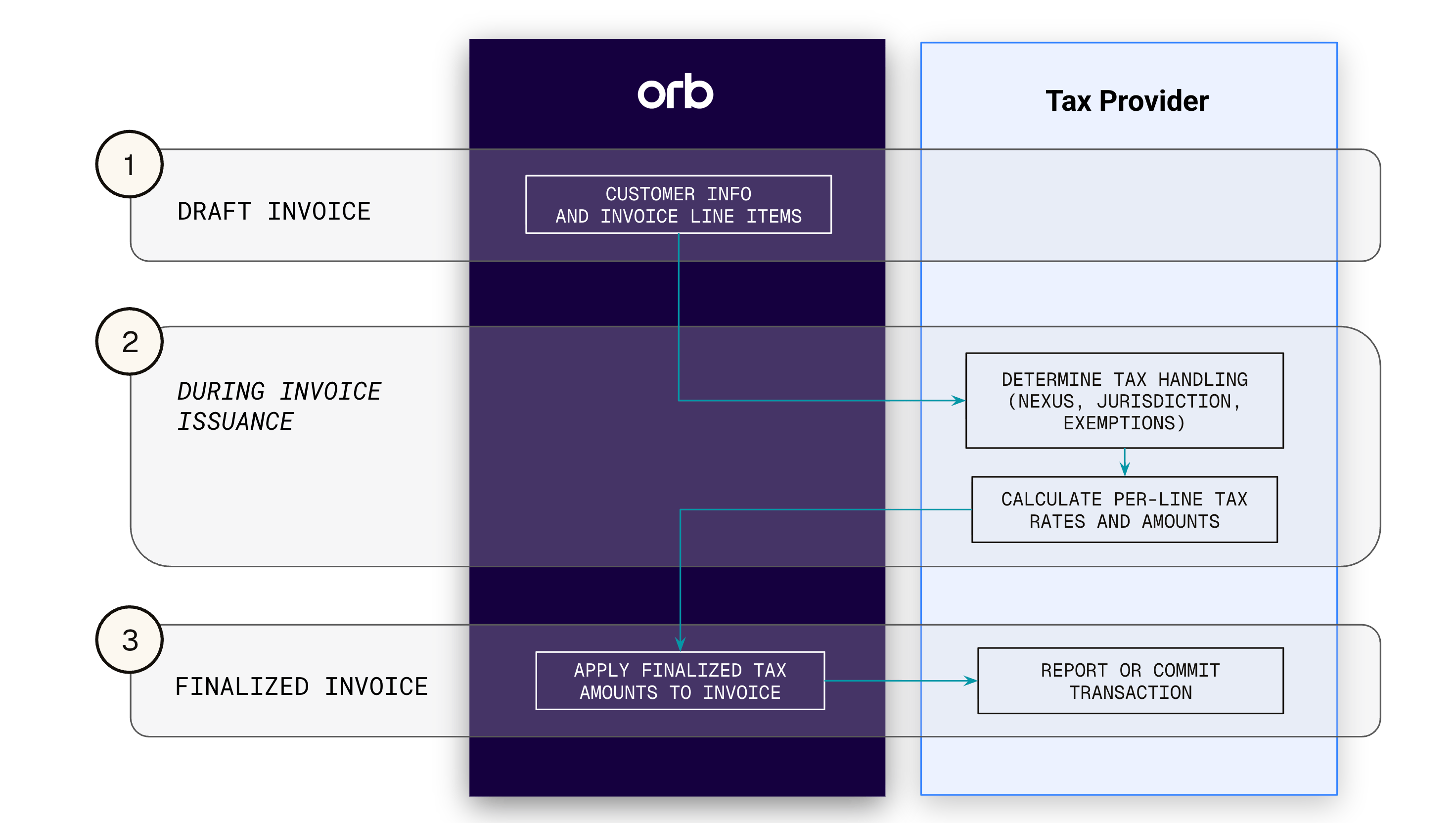
Each provider has its own payload format, but every integration follows the same pattern: Orb sends a calculation request, applies the response to the invoice, and later reports the finalized transaction.
 ## **What Orb sends**
1. **Customer identity and address.** The Orb customer ID and the address used to determine jurisdiction. Where the provider accepts seller or origin details (for example, Avalara's ShipFrom or Numeral's `origin_address`), Orb sends your merchant tax registration.
2. **Line items.** One entry per invoice line item, with its amount, its quantity where applicable, and the external tax code, product ID, or category configured on the Orb item.
3. **Currency and dates.** The invoice currency and the accounting date used to look up rates.
4. **Tax ID and exemption context.** The customer's tax ID and exemption status, for providers that use them to apply reverse-charge or exemption rules.
5. **Metadata.** Identifiers that link the transaction back to the Orb invoice and its line items, so the response can be reconciled.
Providers calculate tax per line item, so Orb assigns any invoice-level discount to individual line items before sending the request. The discount is split in proportion to each line item's total. For example, a $100 discount on an invoice with a $600 line item and a $400 line item reduces them by $60 and \$40, and tax is calculated on the discounted amounts.
## **What Orb receives**
1. A tax amount for each line item, plus the total tax for the invoice.
2. Jurisdiction and rate details for each line item (such as jurisdiction name, rate, and tax name), for providers that return them. Orb shows these in the dashboard for auditing.
3. Any reasons the provider gives for not taxing a line item, such as an exemption.
Orb applies the tax amounts to the invoice as soon as the calculation returns.
## **Reporting the transaction**
For most providers, Orb makes a second call once the invoice is issued, registering the transaction with the provider so it can be filed with a tax authority. This call happens at issuance, not when the invoice is paid, so [event backfills](/events-and-metrics/reporting-errors) after issuance don't change the tax already reported.
* **Anrok, Numeral, Stripe Tax, and TaxJar:** Orb creates a reporting transaction that references the original calculation.
* **Avalara:** Orb creates the transaction during calculation, then commits that same transaction when the invoice moves from issued to paid. The commit only happens when the **Commit tax** setting is on.
* **Sphere:** there's no separate reporting call. Orb re-runs the calculation, and Sphere receives updates through webhooks.
# Setting up customers
## **Addresses**
Orb calculates tax from the customer's shipping address, falling back to the billing address if no shipping address is set. If the customer has no valid address when an invoice is issued, issuance fails and Orb flags the invoice in the dashboard.
You can set customer addresses from the customer details page in the dashboard or through the [API](/api-reference/customer/update-customer).
## **Tax exemptions**
There are two ways to handle a customer who doesn't owe tax:
* **Exemption certificates in your tax provider.** Create a certificate for the customer in your provider's dashboard, using the Orb customer ID so the provider matches it to the right transactions. Orb still sends the invoice for calculation, and the provider applies the exemption.
* **Tax-exempt status in Orb.** Mark the customer as tax exempt in their tax configuration, from the dashboard or the [API](/api-reference/customer/update-customer). Orb then skips tax calculation for the customer entirely.
# Tax IDs
Orb displays both customer and merchant tax IDs on invoices, and sends them to your tax provider as calculation inputs. Merchant tax IDs are managed in Orb, so they work the same way with every provider.
## **Customer tax IDs**
Set a customer's tax ID from the customer details page or [through the API](/api-reference/customer/update-customer#body-tax-id-one-of-0). Orb sends it to your provider with every calculation and report, and the provider uses it to decide whether a transaction qualifies for a reverse charge in eligible VAT countries.
## **What Orb sends**
1. **Customer identity and address.** The Orb customer ID and the address used to determine jurisdiction. Where the provider accepts seller or origin details (for example, Avalara's ShipFrom or Numeral's `origin_address`), Orb sends your merchant tax registration.
2. **Line items.** One entry per invoice line item, with its amount, its quantity where applicable, and the external tax code, product ID, or category configured on the Orb item.
3. **Currency and dates.** The invoice currency and the accounting date used to look up rates.
4. **Tax ID and exemption context.** The customer's tax ID and exemption status, for providers that use them to apply reverse-charge or exemption rules.
5. **Metadata.** Identifiers that link the transaction back to the Orb invoice and its line items, so the response can be reconciled.
Providers calculate tax per line item, so Orb assigns any invoice-level discount to individual line items before sending the request. The discount is split in proportion to each line item's total. For example, a $100 discount on an invoice with a $600 line item and a $400 line item reduces them by $60 and \$40, and tax is calculated on the discounted amounts.
## **What Orb receives**
1. A tax amount for each line item, plus the total tax for the invoice.
2. Jurisdiction and rate details for each line item (such as jurisdiction name, rate, and tax name), for providers that return them. Orb shows these in the dashboard for auditing.
3. Any reasons the provider gives for not taxing a line item, such as an exemption.
Orb applies the tax amounts to the invoice as soon as the calculation returns.
## **Reporting the transaction**
For most providers, Orb makes a second call once the invoice is issued, registering the transaction with the provider so it can be filed with a tax authority. This call happens at issuance, not when the invoice is paid, so [event backfills](/events-and-metrics/reporting-errors) after issuance don't change the tax already reported.
* **Anrok, Numeral, Stripe Tax, and TaxJar:** Orb creates a reporting transaction that references the original calculation.
* **Avalara:** Orb creates the transaction during calculation, then commits that same transaction when the invoice moves from issued to paid. The commit only happens when the **Commit tax** setting is on.
* **Sphere:** there's no separate reporting call. Orb re-runs the calculation, and Sphere receives updates through webhooks.
# Setting up customers
## **Addresses**
Orb calculates tax from the customer's shipping address, falling back to the billing address if no shipping address is set. If the customer has no valid address when an invoice is issued, issuance fails and Orb flags the invoice in the dashboard.
You can set customer addresses from the customer details page in the dashboard or through the [API](/api-reference/customer/update-customer).
## **Tax exemptions**
There are two ways to handle a customer who doesn't owe tax:
* **Exemption certificates in your tax provider.** Create a certificate for the customer in your provider's dashboard, using the Orb customer ID so the provider matches it to the right transactions. Orb still sends the invoice for calculation, and the provider applies the exemption.
* **Tax-exempt status in Orb.** Mark the customer as tax exempt in their tax configuration, from the dashboard or the [API](/api-reference/customer/update-customer). Orb then skips tax calculation for the customer entirely.
# Tax IDs
Orb displays both customer and merchant tax IDs on invoices, and sends them to your tax provider as calculation inputs. Merchant tax IDs are managed in Orb, so they work the same way with every provider.
## **Customer tax IDs**
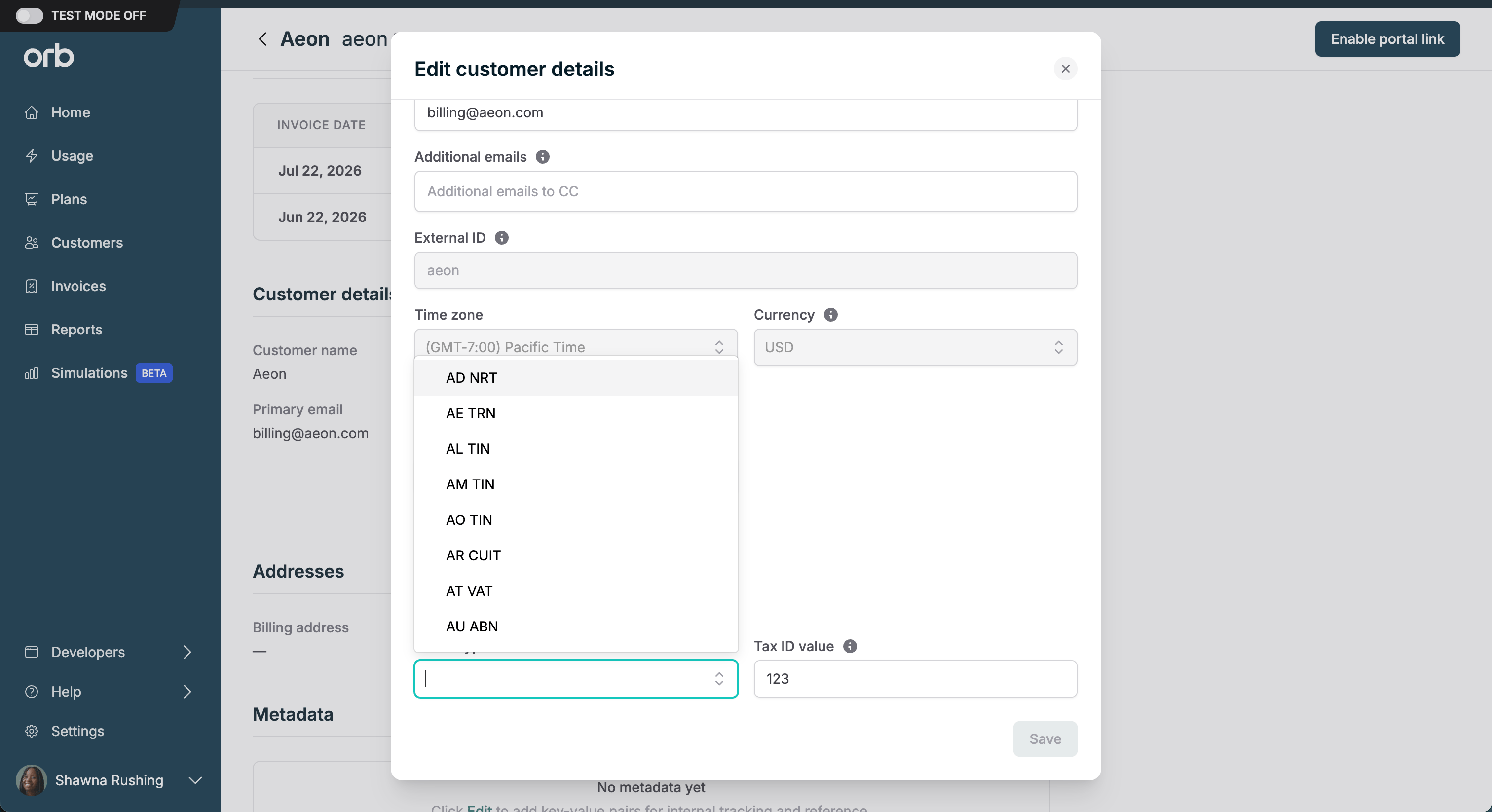
Set a customer's tax ID from the customer details page or [through the API](/api-reference/customer/update-customer#body-tax-id-one-of-0). Orb sends it to your provider with every calculation and report, and the provider uses it to decide whether a transaction qualifies for a reverse charge in eligible VAT countries.
 **A customer's tax ID is final once an invoice is issued.**
Draft invoices always show the customer's current tax ID. Issued invoices keep the tax ID the customer had at issuance, and it can't be changed afterward. To correct it, the invoice must be voided and reissued. Contact Orb Support for help.
## **Merchant tax IDs**
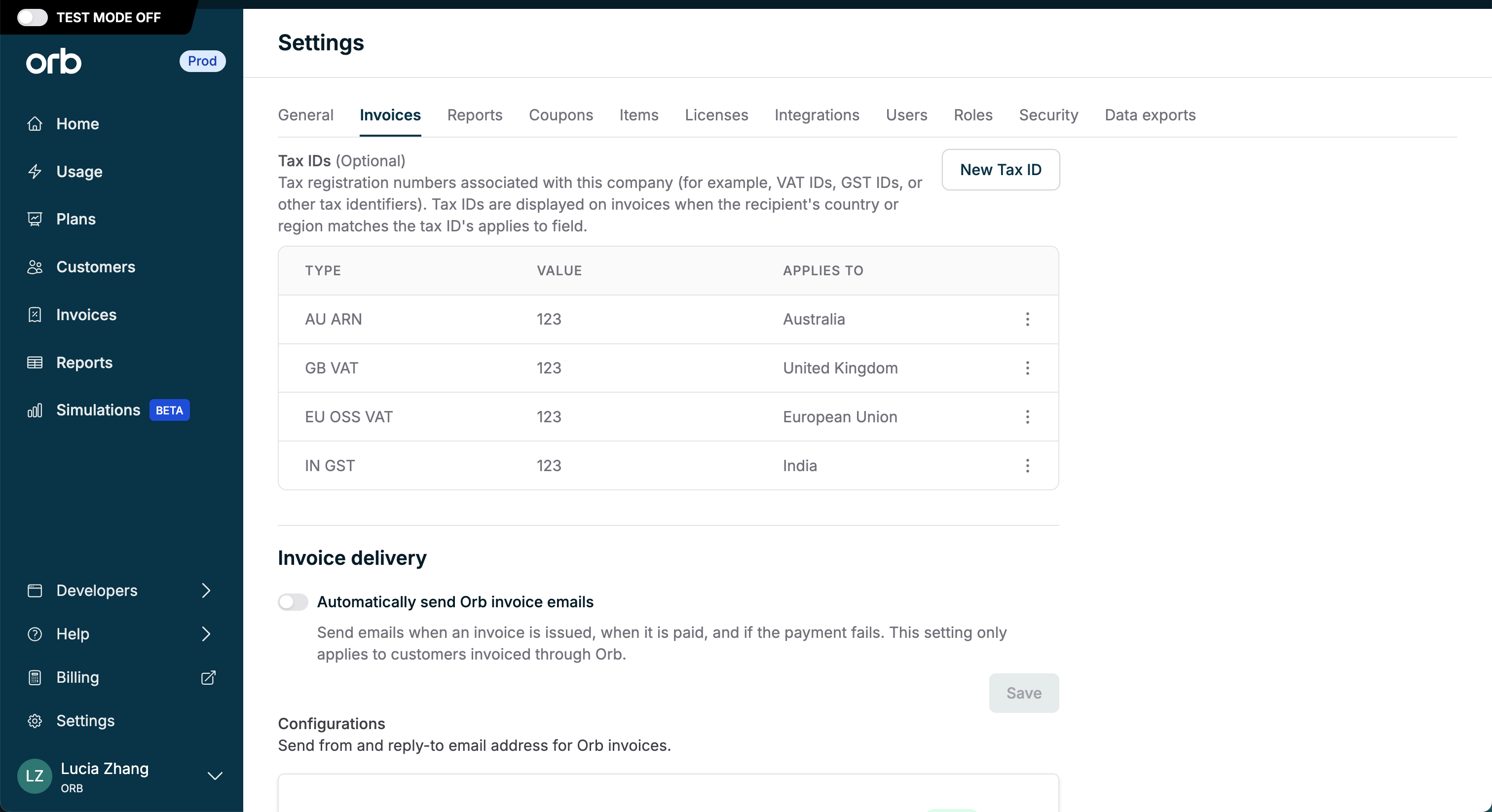
Add your company's tax registration numbers in **Settings > Invoices**. Each tax ID has an **Applies to** setting, and Orb shows it in the invoice's "From" section and on invoice and credit note PDFs when the customer's country or region matches. You can add up to 50 tax IDs per account.
On cross-border invoices, Orb shows the merchant's and customer's country names alongside their addresses, so the tax context is clear.
**A customer's tax ID is final once an invoice is issued.**
Draft invoices always show the customer's current tax ID. Issued invoices keep the tax ID the customer had at issuance, and it can't be changed afterward. To correct it, the invoice must be voided and reissued. Contact Orb Support for help.
## **Merchant tax IDs**
Add your company's tax registration numbers in **Settings > Invoices**. Each tax ID has an **Applies to** setting, and Orb shows it in the invoice's "From" section and on invoice and credit note PDFs when the customer's country or region matches. You can add up to 50 tax IDs per account.
On cross-border invoices, Orb shows the merchant's and customer's country names alongside their addresses, so the tax context is clear.
 # When Orb skips tax calculation
Orb doesn't calculate tax on an invoice when:
* automatic tax is off for the customer,
* the customer is marked as [tax exempt](#tax-exemptions) in Orb,
* no tax provider is connected, or the integration is disabled, or
* the invoice syncs to an external invoicing provider, such as Stripe Invoicing, Bill.com, or NetSuite.
## **Automatic tax**
Automatic tax controls whether Orb calculates tax for a customer's invoices. You set it for your whole account and can override it for individual customers. Customers without an override follow the account setting. The setting only takes effect once a tax integration is connected.
When automatic tax is off, Orb doesn't contact your tax provider at all, and it skips the address check, so invoices can be issued for customers without a valid address. This is an operational control, not a legal determination. Use it when tax is handled outside Orb: manually, by a marketplace, by an external invoicing system, or by another tax engine.
## **Invoices synced to external invoicing providers**
External invoicing providers usually apply their own tax, so Orb skips its calculation for invoices it syncs to them and doesn't sync any tax line items. This prevents double taxation and supports gradual migrations: customers still invoiced through a provider like Stripe Invoicing keep their existing tax setup until you move them to Orb Invoicing.
## **Timeline events**
Whenever Orb skips tax on an invoice, it records an event on the invoice timeline with the reason, the time of the decision, and any relevant context, such as which external provider the invoice syncs to. Use these events to audit untaxed invoices and find ones that need manual review.
# Credit notes and voids
* **Credit notes.** When you issue a credit note on a taxed invoice, Orb calculates the tax adjustment in proportion to the original transaction and reports it to your provider, so refunds show up correctly in your compliance records.
* **Voids.** Voiding a taxed invoice removes its original tax impact instead of recording a refund. Orb sends the matching void or reversal to your provider so the two systems stay reconciled.
In both cases, the reversal uses the customer information from the original invoice.
This documentation is built and hosted on [Mintlify](https://mintlify.com), a developer documentation platform.
# When Orb skips tax calculation
Orb doesn't calculate tax on an invoice when:
* automatic tax is off for the customer,
* the customer is marked as [tax exempt](#tax-exemptions) in Orb,
* no tax provider is connected, or the integration is disabled, or
* the invoice syncs to an external invoicing provider, such as Stripe Invoicing, Bill.com, or NetSuite.
## **Automatic tax**
Automatic tax controls whether Orb calculates tax for a customer's invoices. You set it for your whole account and can override it for individual customers. Customers without an override follow the account setting. The setting only takes effect once a tax integration is connected.
When automatic tax is off, Orb doesn't contact your tax provider at all, and it skips the address check, so invoices can be issued for customers without a valid address. This is an operational control, not a legal determination. Use it when tax is handled outside Orb: manually, by a marketplace, by an external invoicing system, or by another tax engine.
## **Invoices synced to external invoicing providers**
External invoicing providers usually apply their own tax, so Orb skips its calculation for invoices it syncs to them and doesn't sync any tax line items. This prevents double taxation and supports gradual migrations: customers still invoiced through a provider like Stripe Invoicing keep their existing tax setup until you move them to Orb Invoicing.
## **Timeline events**
Whenever Orb skips tax on an invoice, it records an event on the invoice timeline with the reason, the time of the decision, and any relevant context, such as which external provider the invoice syncs to. Use these events to audit untaxed invoices and find ones that need manual review.
# Credit notes and voids
* **Credit notes.** When you issue a credit note on a taxed invoice, Orb calculates the tax adjustment in proportion to the original transaction and reports it to your provider, so refunds show up correctly in your compliance records.
* **Voids.** Voiding a taxed invoice removes its original tax impact instead of recording a refund. Orb sends the matching void or reversal to your provider so the two systems stay reconciled.
In both cases, the reversal uses the customer information from the original invoice.
This documentation is built and hosted on [Mintlify](https://mintlify.com), a developer documentation platform.