> ## Documentation Index
> Fetch the complete documentation index at: https://docs.withorb.com/llms.txt
> Use this file to discover all available pages before exploring further.
# Sync Orb data to Salesforce
Give your team full visibility into customer subscription data directly in Salesforce. By syncing billing and usage data from Orb, sales and success teams can track account health, identify expansion opportunities, and anticipate customer needs.
Monitor key business metrics including:
* Current subscriptions and product usage
* Invoice history and month-over-month trends
* Real-time usage patterns for upsell opportunities
* Credit balance and commitment tracking
## How it works
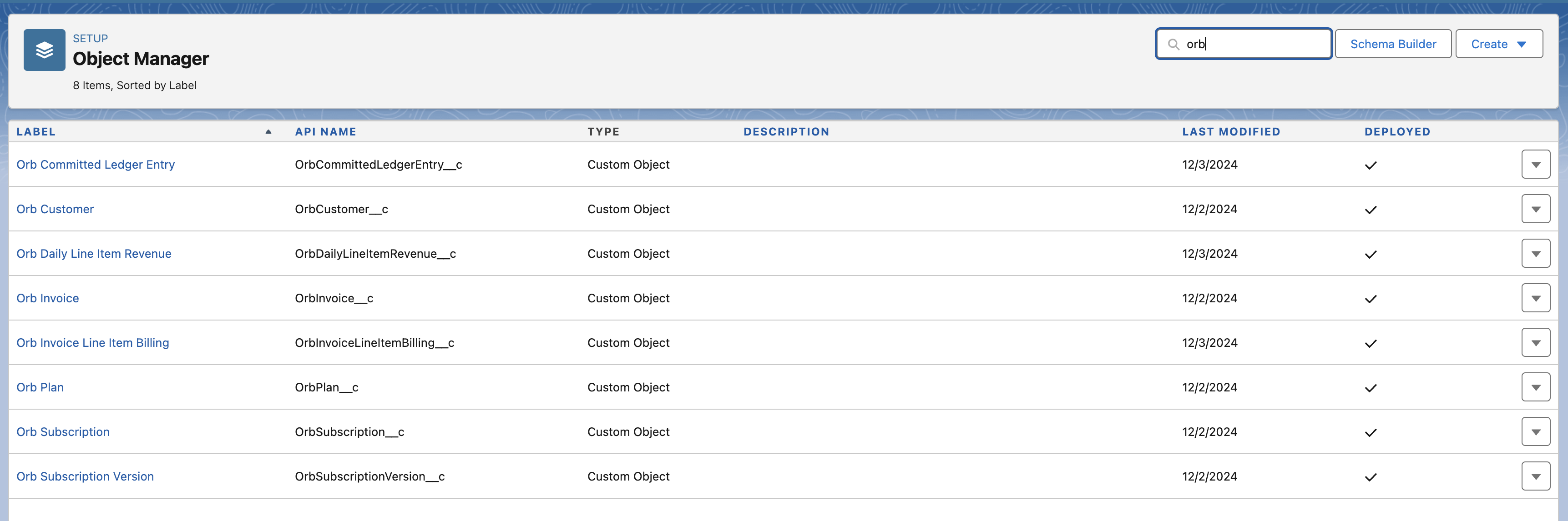
The Salesforce CRM integration creates a set of custom objects in Salesforce corresponding to Orb resources, as detailed below.
After successfully authenticating a Salesforce instance, the initial sync will export all existing Orb data into Salesforce. After the initial sync, objects will be incrementally synced on a daily basis.
| Orb resource | Salesforce custom object name | Description |
| ----------------------------------------------------------------------------------- | ----------------------------- | ------------------------------------------------------------------------------------------------------------------------------------------------------------------------------------------------------------------ |
| [Customers](/core-concepts#customer) | OrbCustomer | Representation of a business which includes name, address, and other information identifying the billable entity ([schema](/integrations-and-exports/salesforce/schema#customer)) |
| [Invoice](/core-concepts#invoice) | OrbInvoice | Issued invoices for the customer if the subscription is still active. Each invoice includes line items and finalized usage and dollar value totals ([schema](/integrations-and-exports/salesforce/schema#invoice)) |
| [Plan](/core-concepts#plan-and-price) | OrbPlan | A group of prices representing what customers could be charged ([schema](/integrations-and-exports/salesforce/schema#plan)) |
| [Subscription](/core-concepts#subscription) | OrbSubscription | The link between a plan and a specific customer. Including any overrides to a plan ([schema](/integrations-and-exports/salesforce/schema#subscription)) |
| [Invoice Line Item Billing](/data-exports/resource-types#invoice-line-item-billing) | OrbInvoiceLineItemBilling | The issued and billed amounts for each line item on an invoice ([schema](/integrations-and-exports/salesforce/schema#invoice-line-item-billing)) |
| [Subscription Version](/api-reference/subscription/fetch-subscription-schedule) | OrbSubscriptionVersion | A point in time representation of a plan for a particular customer ([schema](/integrations-and-exports/salesforce/schema#subscription-version)) |
| [Daily Line Item Revenue](/data-exports/resource-types#daily-line-item-revenue) | OrbDailyLineItemRevenue | The daily incremental changes on a line item representing the quantities each day for an invoice ([schema](/integrations-and-exports/salesforce/schema#daily-line-item-revenue)) |
| [Credit Ledger Entry](/product-catalog/prepurchase#exporting-the-ledger) | OrbCommittedLedgerEntry | Information on credit increments, decrements and voids ([schema](/integrations-and-exports/salesforce/schema#committed-ledger-entry)) |
For schema object information refer to the [schema page](/integrations-and-exports/salesforce/schema).
 ## Setup
1. Navigate to the Integrations page under Settings.
2. Click "Connect to Salesforce" to configure the data sync.
## Setup
1. Navigate to the Integrations page under Settings.
2. Click "Connect to Salesforce" to configure the data sync.
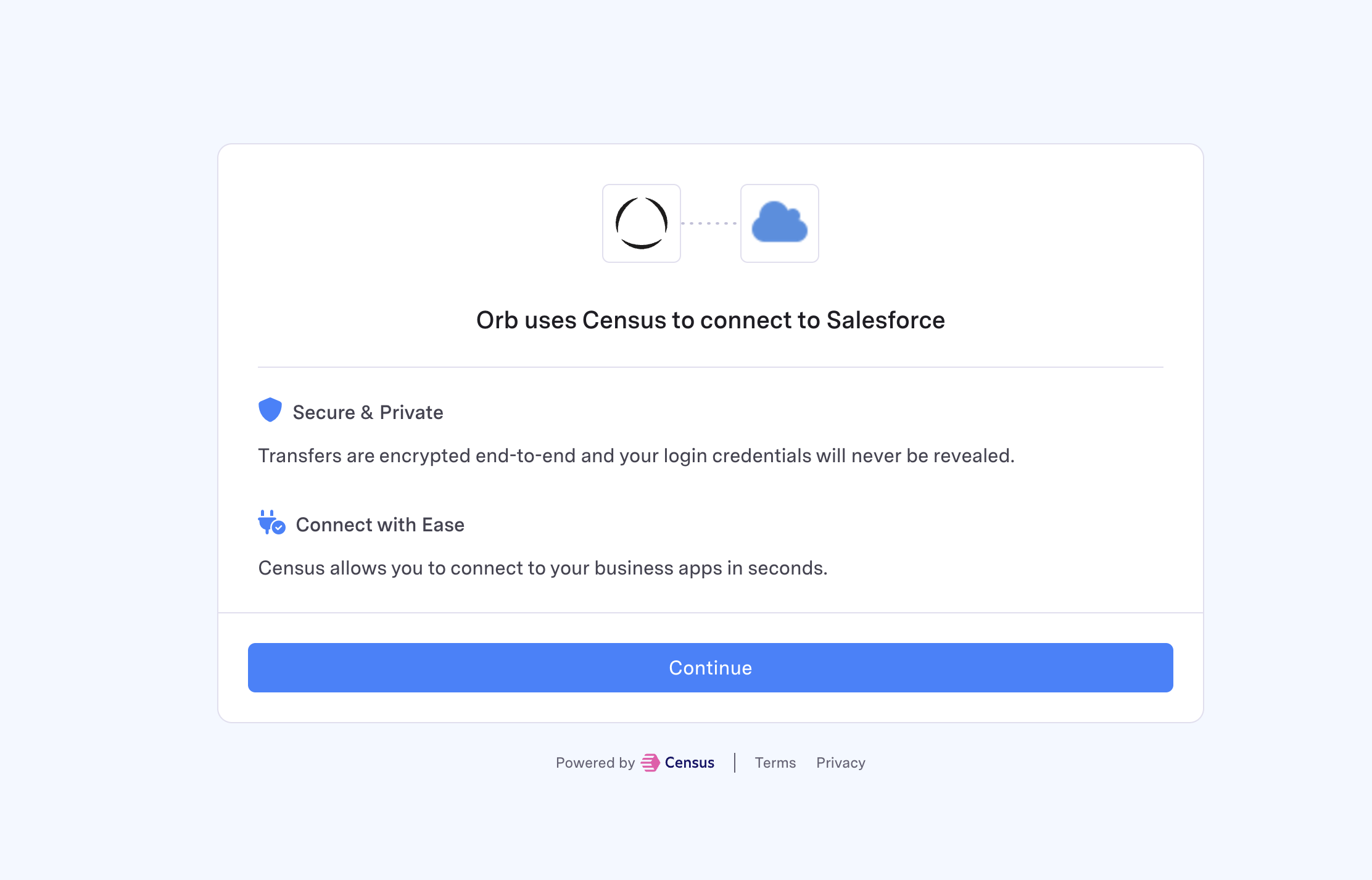
 3. Authorize Orb to connect to your Salesforce instance.
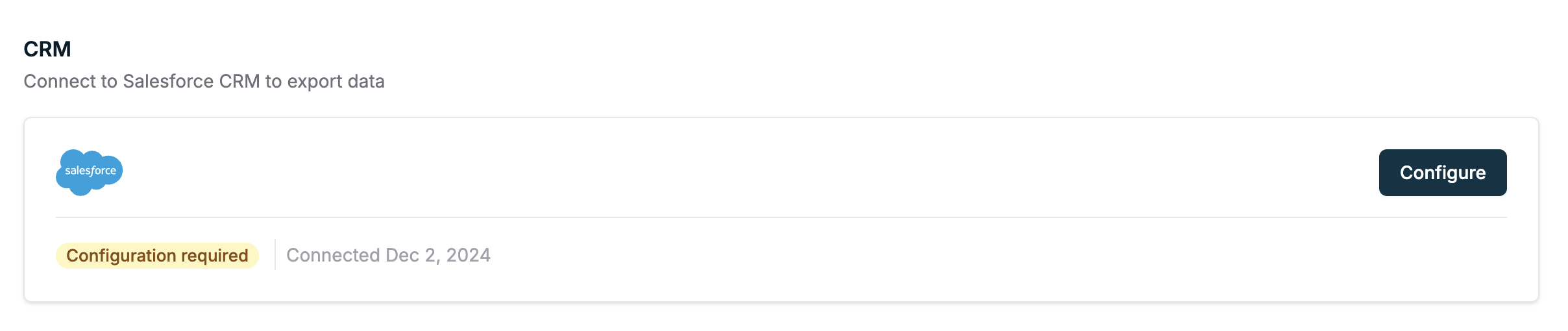
 4. After a successful connection, you can configure the sync.
 ### Sync configuration
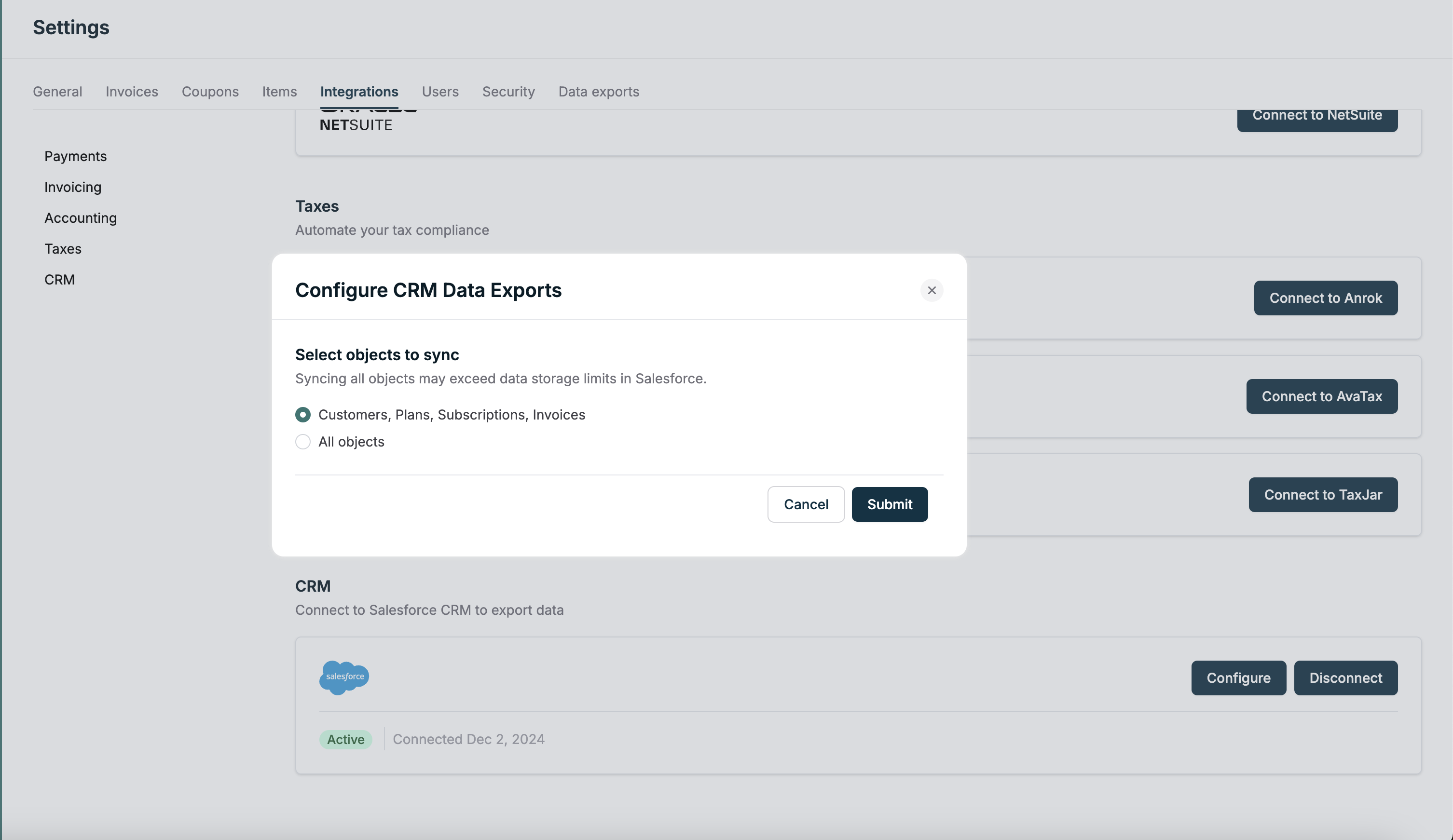
Orb allows configuring the data types exported to Salesforce. Orb recommends syncing a smaller set of objects to avoid data limit restrictions in Salesforce. Once the selection has been submitted, Orb will begin the initial sync process to create the objects in Salesforce and begin syncing over the Orb objects. The data type selection can be modified once the integration is active.
### Sync configuration
Orb allows configuring the data types exported to Salesforce. Orb recommends syncing a smaller set of objects to avoid data limit restrictions in Salesforce. Once the selection has been submitted, Orb will begin the initial sync process to create the objects in Salesforce and begin syncing over the Orb objects. The data type selection can be modified once the integration is active.
 ### Viewing Data in Salesforce
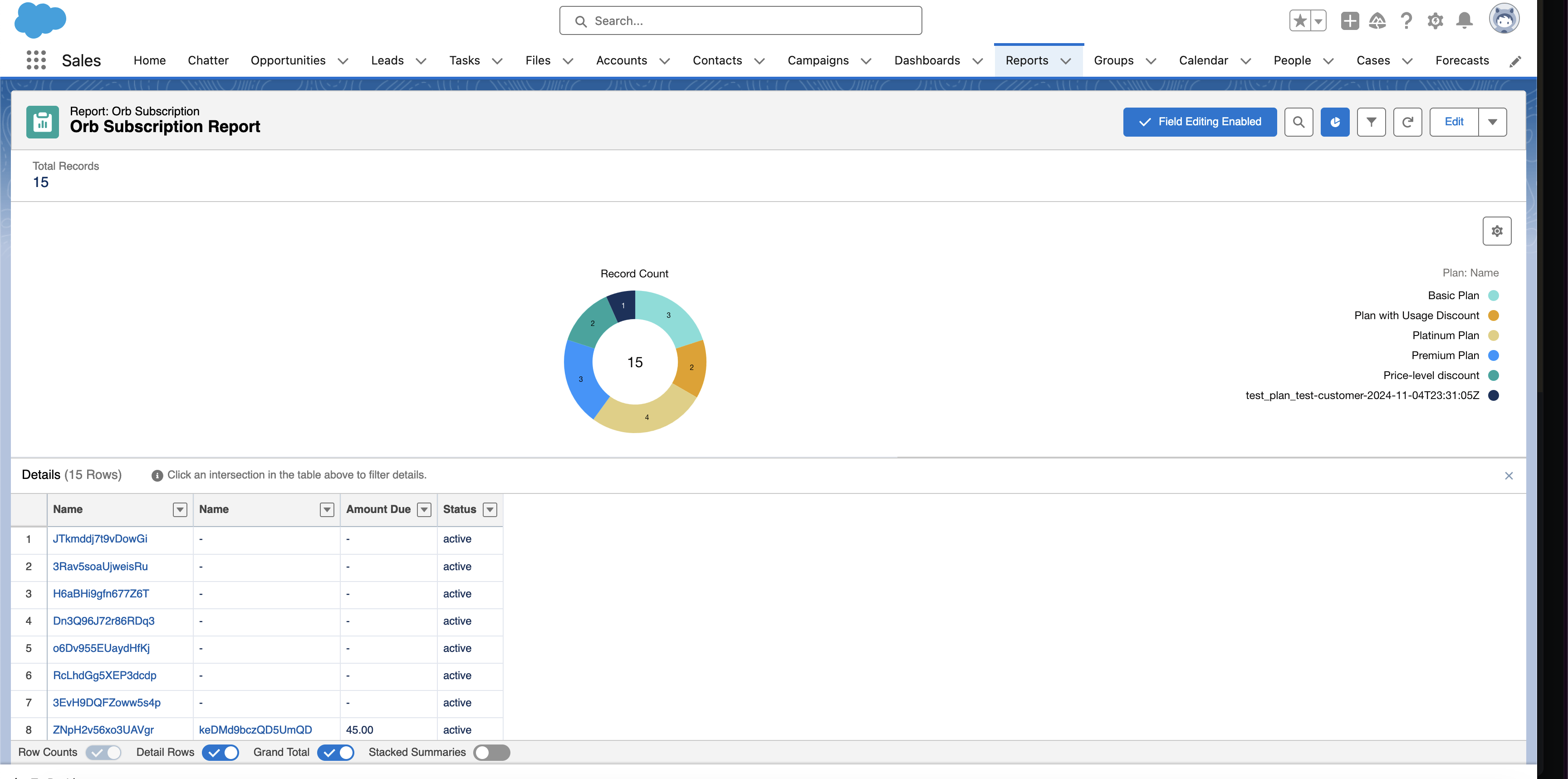
Navigate to the Reports tab in Salesforce to view the synced data.
### Viewing Data in Salesforce
Navigate to the Reports tab in Salesforce to view the synced data.