> ## Documentation Index
> Fetch the complete documentation index at: https://docs.withorb.com/llms.txt
> Use this file to discover all available pages before exploring further.
# Pending changes
Orb’s **Pending Changes** feature lets you stage a subscription change—like creating a new subscription or editing an existing one—*without applying it immediately*. This gives you full control over when the change takes effect, usually after payment is collected or other validation is complete.
This makes it possible to persist subscription changes in Orb *without applying them*, giving you access to the full power of Orb’s billing model—including invoice generation and change tracking—even before you commit to a subscription. That means you can use pending changes to power your application’s billing UI or confirmation flows in out-of-band workflows, such as signup experiences or manual payment collection flows.
It’s especially useful for powering checkout flows, where you want to preview charges, collect payment, and only then commit to the subscription or mutation.
You'd use a pending change instead of creating a subscription directly when:
* You want to treat the subscription as *unentitled* until payment is confirmed.
* You need to control the *first* payment flow yourself, especially if you don't want Orb to immediately issue a fixed fee invoice.
* You want to show your user an invoice preview *before* creating the subscription — which makes this ideal for powering checkout flows.
* These benefits apply both to creating new subscriptions and mutating existing ones.
## Example use case: Checkout flow
 1. Backend calls `POST /subscriptions` with header `Create-Pending-Subscription-Change: true`
2. Orb returns the subscription preview and a `pending_subscription_change` ID
3. Backend uses the invoice preview to create a PaymentIntent with Stripe
4. Frontend collects + confirms payment
5. Backend calls `/subscription_changes/{id}/apply` once payment is successful, usually providing the `previously_collected_amount` to cover the initial invoice.
## Usage
To stage a pending change, pass this header on any subscription mutation endpoint:
```
Create-Pending-Subscription-Change: true
```
This applies to the following subscription mutations:
* [Create subscription](/api-reference/subscription/create-subscription)
* [Schedule plan change](/api-reference/subscription/schedule-plan-change)
* [Trigger phase](/api-reference/subscription/trigger-phase)
* [Update price quantity](/api-reference/subscription/update-price-quantity)
* [Update trial for subscription](/api-reference/subscription/update-trial-for-subscription)
* [Add or edit price intervals](/api-reference/price-interval/add-or-edit-price-intervals) — particularly useful for powering checkout flows with add-ons
The mutation will:
* Return a `pending_subscription_change` in the subscription response
* Show the **post-change state** of the subscription (acts as a preview)
* Prevent further changes until this change is applied or canceled
You can only have one pending change at a time per subscription.
## Follow-up actions
Once you’ve staged a change, use the following endpoints to manage it:
### Fetch the pending change
```http theme={null}
GET /subscription_changes/{subscription_change_id}
```
Returns full metadata, including the intended post-change subscription and customer info. This can be used to:
* View what will be changed
* Extract associated invoice amounts
* Display checkout UI to your user
### Apply the change
You should explicitly pass either `mark_as_paid` or `previously_collected_amount` when applying
a change if payment has been collected for the initial invoice(s) to ensure that the payment
is not collected twice.
```http theme={null}
POST /subscription_changes/{subscription_change_id}/apply
```
This endpoint applies the change. If an invoice was created with in-advance charges, it will be issued immediately.
**Payment Parameters**
The apply endpoint supports two optional payment-related parameters that can be used independently or together:
`previously_collected_amount` - Amount already collected externally (e.g., via Stripe, manual payment)
* This amount will be credited to the customer's balance
* Helps avoid double-charging for amounts already collected in cases where mark\_as\_paid is not used
`mark_as_paid` - Boolean flag to mark all *payable* invoices as finalized and paid
* Use when you've collected payment externally and want to mark invoices as paid
* Only affects invoices where `is_payable_now` is true in the changed resources
* Does not modify customer balance when used alone
**Payment Scenarios**
**Scenario 1**: External payment collection without balance adjustment
```json theme={null}
{
"mark_as_paid": true,
"description": "Payment collected via Stripe"
}
```
Use this when you've collected the exact amount due externally and want to mark invoices as paid without any balance adjustments.
**Scenario 2**: External payment with balance credit
```json theme={null}
{
"previously_collected_amount": "2999",
"description": "Stripe PaymentIntent confirmed"
}
```
This lets you track what was already paid for externally, and is in terms of the customer currency.
The previously\_collected\_amount will be added to the customer balance and will be reflected in the issued invoice.
**Scenario 3**: External payment with difference handling
```json theme={null}
{
"mark_as_paid": true,
"previously_collected_amount": "2500",
"description": "Partial payment collected"
}
```
Use this when the amount collected differs from the total invoice amount. Orb will:
1. Mark all payable invoices as finalized and paid
2. Calculate the difference: `previously_collected_amount` - total\_invoice\_amount
3. Adjust the customer balance by this difference
### Cancel the change
```http theme={null}
POST /subscription_changes/{subscription_change_id}/cancel
```
Cancels the pending change. This is required if you want to mutate the subscription again or if the user drops off.
## Expiration
Pending changes expire automatically after **1 day**. This prevents abandoned sessions from blocking further changes.
## Previewing charges
The subscription returned when a pending change is staged reflects the *intended* state. To understand the associated invoices:
* Inspect the `changed_resources` field on the subscription
* Look at `created_invoices`, which include both immediate and lookahead (upcoming beyond that) invoices
* Use the `is_payable_now` field on created invoices to identify which invoices need payment first. These will be invoices that are payable now with only in-advance fixed fee line items. You can use this field to determine which invoices should be paid to enable access to a subscription change (eg. plan upgrade).
Resources within `changed_resources` are a preview of the invoicing changes that will be made.
After applying, you can expect the shape of newly created invoices to match except the `id` field, which is transient.
This can help:
* Identify the invoice to pay in your integration
* Validate invoice totals before confirmation
### Using `Include-Changed-Resources` with pending changes
You can pass the `Include-Changed-Resources` header when creating a pending subscription change to control the changed resources included in the response.
For checkout flows, the `payable_invoices` mode is recommended:
```
Include-Changed-Resources: payable_invoices
```
This returns only invoices where `is_payable_now` is true, which is typically the information you need to determine upfront charges. This mode skips voided invoices, credit notes, and expensive metric recomputation, making it faster and more efficient for powering checkout UIs.
You can also pass `Include-Changed-Resources: true` to get the full set of changed resources (created and voided invoices, credit notes) for a pending change.
See [Preview side effects](/essentials/previews) for more details on the `Include-Changed-Resources` header.
Subscriptions with a pending change cannot be mutated again until the change is applied or canceled.
## Additional behavior notes
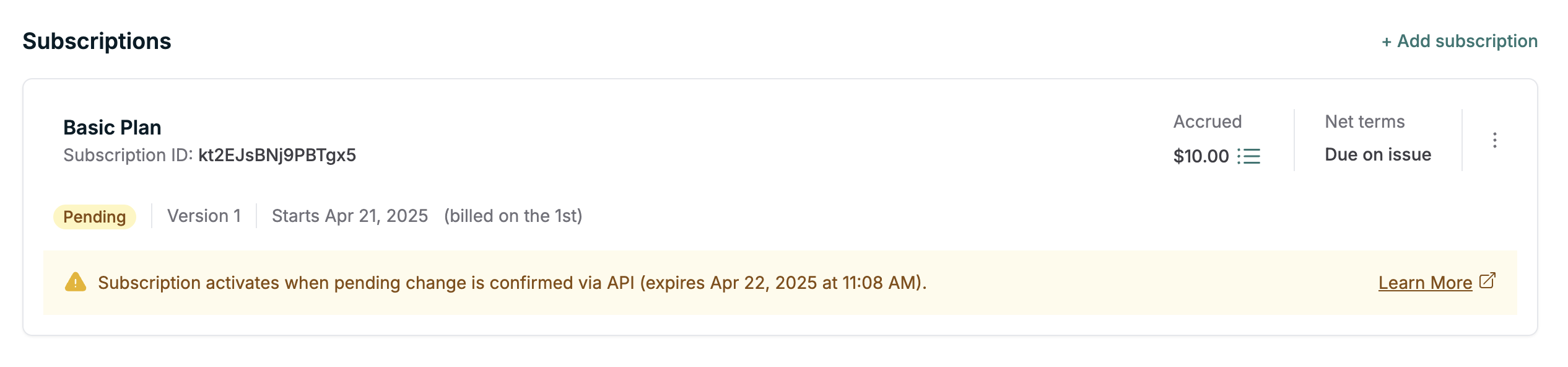
* **Pending changes can be used on existing subscriptions**, not just new ones. This includes actions like plan changes or price updates. Just note that **you cannot perform another mutation while a pending change exists**.
* If you're using pending changes to **create a new subscription**, you won't be able to fetch it by ID until the change is applied.
* **Pending subscriptions are skipped in migrations**. They must be confirmed before they're considered active.
* **Pending subscriptions do not appear in data exports**. This avoids polluting analytics or reporting pipelines with draft states.
In Orb, you'll see these resource events for pending changes when:
* A new pending change is created
* A pending change expires
* A pending change is applied
* A pending change is canceled
These events appear on the customer timeline, and are attached to either the customer
or subscription depending on whether the change is for a new subscription or an existing one.
## Frequently asked questions
### Can I change the expiration time for a pending change?
Not today — all pending changes expire after 24 hours by default. We may expose a configurable expiration in the future.
### Can I apply a pending change if no invoice was generated?
Yes. If the change doesn’t result in a charge (e.g. only free metered prices were added), you can still apply the change without issue.
### What happens if I try to apply the same change twice?
Pending changes are single-use. Once applied or canceled, they cannot be reused — you’ll receive an error if you try.
### What happens if a payment fails after I apply the change?
Orb has no built-in rollback for this case. You’re expected to confirm payment externally *before* calling the apply endpoint. If the payment fails after applying, you’ll need to cancel the subscription or issue a refund manually.
1. Backend calls `POST /subscriptions` with header `Create-Pending-Subscription-Change: true`
2. Orb returns the subscription preview and a `pending_subscription_change` ID
3. Backend uses the invoice preview to create a PaymentIntent with Stripe
4. Frontend collects + confirms payment
5. Backend calls `/subscription_changes/{id}/apply` once payment is successful, usually providing the `previously_collected_amount` to cover the initial invoice.
## Usage
To stage a pending change, pass this header on any subscription mutation endpoint:
```
Create-Pending-Subscription-Change: true
```
This applies to the following subscription mutations:
* [Create subscription](/api-reference/subscription/create-subscription)
* [Schedule plan change](/api-reference/subscription/schedule-plan-change)
* [Trigger phase](/api-reference/subscription/trigger-phase)
* [Update price quantity](/api-reference/subscription/update-price-quantity)
* [Update trial for subscription](/api-reference/subscription/update-trial-for-subscription)
* [Add or edit price intervals](/api-reference/price-interval/add-or-edit-price-intervals) — particularly useful for powering checkout flows with add-ons
The mutation will:
* Return a `pending_subscription_change` in the subscription response
* Show the **post-change state** of the subscription (acts as a preview)
* Prevent further changes until this change is applied or canceled
You can only have one pending change at a time per subscription.
## Follow-up actions
Once you’ve staged a change, use the following endpoints to manage it:
### Fetch the pending change
```http theme={null}
GET /subscription_changes/{subscription_change_id}
```
Returns full metadata, including the intended post-change subscription and customer info. This can be used to:
* View what will be changed
* Extract associated invoice amounts
* Display checkout UI to your user
### Apply the change
You should explicitly pass either `mark_as_paid` or `previously_collected_amount` when applying
a change if payment has been collected for the initial invoice(s) to ensure that the payment
is not collected twice.
```http theme={null}
POST /subscription_changes/{subscription_change_id}/apply
```
This endpoint applies the change. If an invoice was created with in-advance charges, it will be issued immediately.
**Payment Parameters**
The apply endpoint supports two optional payment-related parameters that can be used independently or together:
`previously_collected_amount` - Amount already collected externally (e.g., via Stripe, manual payment)
* This amount will be credited to the customer's balance
* Helps avoid double-charging for amounts already collected in cases where mark\_as\_paid is not used
`mark_as_paid` - Boolean flag to mark all *payable* invoices as finalized and paid
* Use when you've collected payment externally and want to mark invoices as paid
* Only affects invoices where `is_payable_now` is true in the changed resources
* Does not modify customer balance when used alone
**Payment Scenarios**
**Scenario 1**: External payment collection without balance adjustment
```json theme={null}
{
"mark_as_paid": true,
"description": "Payment collected via Stripe"
}
```
Use this when you've collected the exact amount due externally and want to mark invoices as paid without any balance adjustments.
**Scenario 2**: External payment with balance credit
```json theme={null}
{
"previously_collected_amount": "2999",
"description": "Stripe PaymentIntent confirmed"
}
```
This lets you track what was already paid for externally, and is in terms of the customer currency.
The previously\_collected\_amount will be added to the customer balance and will be reflected in the issued invoice.
**Scenario 3**: External payment with difference handling
```json theme={null}
{
"mark_as_paid": true,
"previously_collected_amount": "2500",
"description": "Partial payment collected"
}
```
Use this when the amount collected differs from the total invoice amount. Orb will:
1. Mark all payable invoices as finalized and paid
2. Calculate the difference: `previously_collected_amount` - total\_invoice\_amount
3. Adjust the customer balance by this difference
### Cancel the change
```http theme={null}
POST /subscription_changes/{subscription_change_id}/cancel
```
Cancels the pending change. This is required if you want to mutate the subscription again or if the user drops off.
## Expiration
Pending changes expire automatically after **1 day**. This prevents abandoned sessions from blocking further changes.
## Previewing charges
The subscription returned when a pending change is staged reflects the *intended* state. To understand the associated invoices:
* Inspect the `changed_resources` field on the subscription
* Look at `created_invoices`, which include both immediate and lookahead (upcoming beyond that) invoices
* Use the `is_payable_now` field on created invoices to identify which invoices need payment first. These will be invoices that are payable now with only in-advance fixed fee line items. You can use this field to determine which invoices should be paid to enable access to a subscription change (eg. plan upgrade).
Resources within `changed_resources` are a preview of the invoicing changes that will be made.
After applying, you can expect the shape of newly created invoices to match except the `id` field, which is transient.
This can help:
* Identify the invoice to pay in your integration
* Validate invoice totals before confirmation
### Using `Include-Changed-Resources` with pending changes
You can pass the `Include-Changed-Resources` header when creating a pending subscription change to control the changed resources included in the response.
For checkout flows, the `payable_invoices` mode is recommended:
```
Include-Changed-Resources: payable_invoices
```
This returns only invoices where `is_payable_now` is true, which is typically the information you need to determine upfront charges. This mode skips voided invoices, credit notes, and expensive metric recomputation, making it faster and more efficient for powering checkout UIs.
You can also pass `Include-Changed-Resources: true` to get the full set of changed resources (created and voided invoices, credit notes) for a pending change.
See [Preview side effects](/essentials/previews) for more details on the `Include-Changed-Resources` header.
Subscriptions with a pending change cannot be mutated again until the change is applied or canceled.
## Additional behavior notes
* **Pending changes can be used on existing subscriptions**, not just new ones. This includes actions like plan changes or price updates. Just note that **you cannot perform another mutation while a pending change exists**.
* If you're using pending changes to **create a new subscription**, you won't be able to fetch it by ID until the change is applied.
* **Pending subscriptions are skipped in migrations**. They must be confirmed before they're considered active.
* **Pending subscriptions do not appear in data exports**. This avoids polluting analytics or reporting pipelines with draft states.
In Orb, you'll see these resource events for pending changes when:
* A new pending change is created
* A pending change expires
* A pending change is applied
* A pending change is canceled
These events appear on the customer timeline, and are attached to either the customer
or subscription depending on whether the change is for a new subscription or an existing one.
## Frequently asked questions
### Can I change the expiration time for a pending change?
Not today — all pending changes expire after 24 hours by default. We may expose a configurable expiration in the future.
### Can I apply a pending change if no invoice was generated?
Yes. If the change doesn’t result in a charge (e.g. only free metered prices were added), you can still apply the change without issue.
### What happens if I try to apply the same change twice?
Pending changes are single-use. Once applied or canceled, they cannot be reused — you’ll receive an error if you try.
### What happens if a payment fails after I apply the change?
Orb has no built-in rollback for this case. You’re expected to confirm payment externally *before* calling the apply endpoint. If the payment fails after applying, you’ll need to cancel the subscription or issue a refund manually.