> ## Documentation Index
> Fetch the complete documentation index at: https://docs.withorb.com/llms.txt
> Use this file to discover all available pages before exploring further.
# Authentication
Orb's system supports a handful of login and authentication methods to help ensure the security of your Orb account.
These methods include:
* Password login
* [OAuth login with Google or Microsoft](#google-and-microsoft-login)
* [SAML SSO login (included only on certain plans)](#saml-sso)
Account Admins are able to make changes to the authentication configuration by visiting the "Security" tab under "Settings."
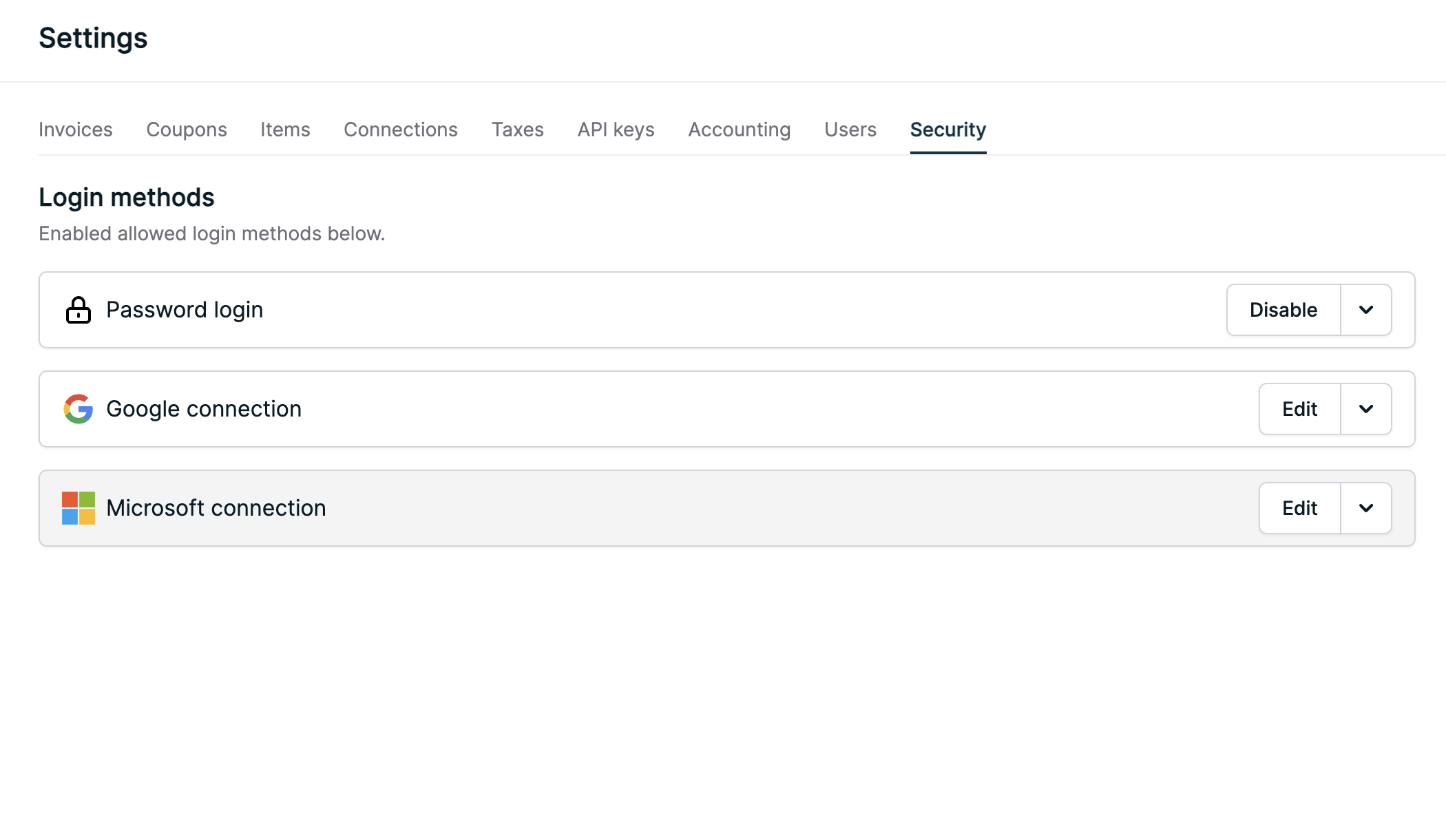 Multiple login methods may be enabled at one time. This can be useful for
cases like system migrations, multiple auth systems, and more.
### Inviting users
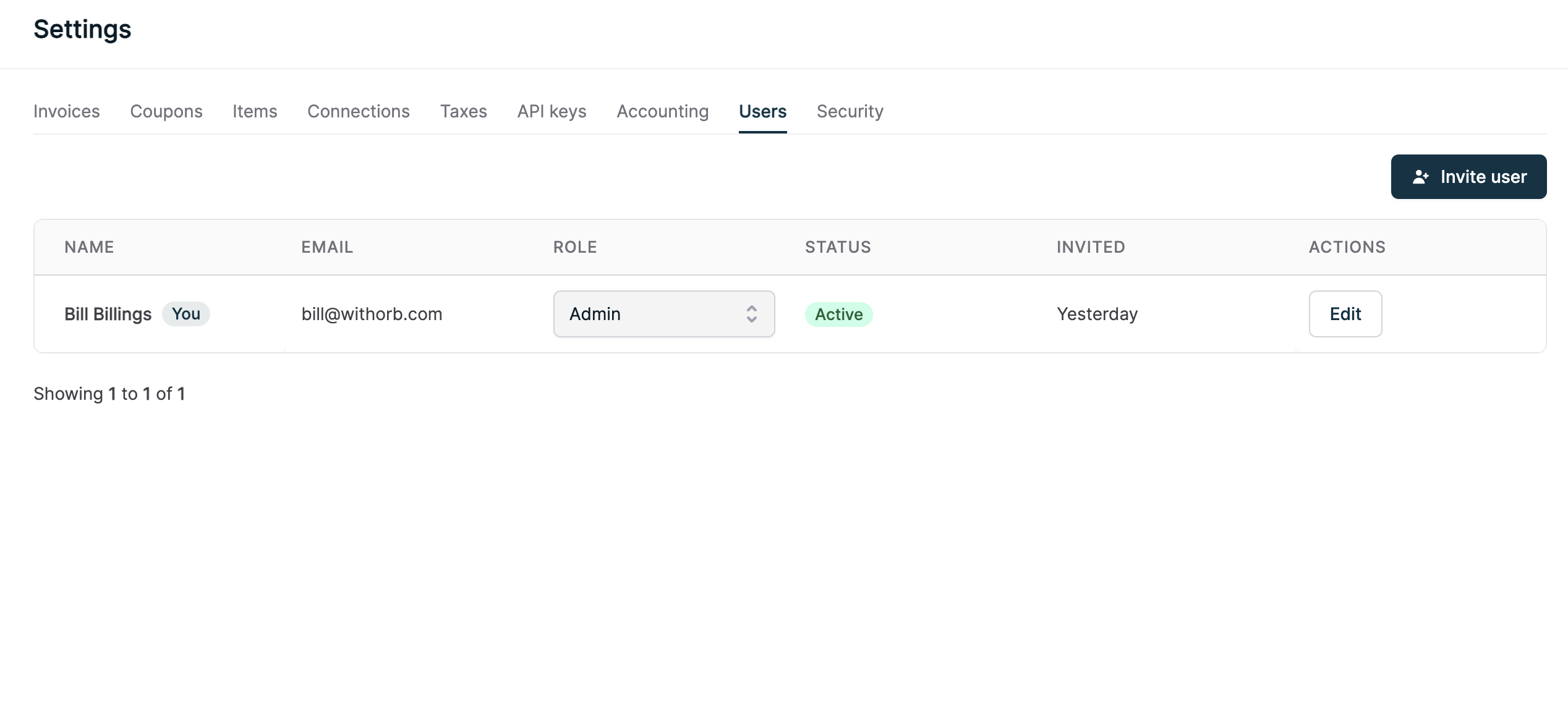
Account Admins can invite new users to join your Orb account by visiting the "Users" tab under "Settings."
In order to login to Orb, users are required to have been invited by an Account Admin.
If an invited user has not accepted their invite, Account Admins can resend the invitation email from that user's actions menu.
Multiple login methods may be enabled at one time. This can be useful for
cases like system migrations, multiple auth systems, and more.
### Inviting users
Account Admins can invite new users to join your Orb account by visiting the "Users" tab under "Settings."
In order to login to Orb, users are required to have been invited by an Account Admin.
If an invited user has not accepted their invite, Account Admins can resend the invitation email from that user's actions menu.
 #### User roles
Orb supports three user roles, "Admin", "Editor", and "Viewer":
| Role | Description | Key restrictions |
| :--------- | :-------------------------------------------------------------------------------------------------------------------------------------------------------------------------------------------- | :---------------------------------------------------------------------------------------------------- |
| **Admin** | Full control, including managing user access and permissions, setting up integrations and exports, and viewing audit logs. | None |
| **Editor** | Create, update, and manage core billing objects (plans, subscriptions, metrics, etc.); access simulation and reporting tools; monitor and re-sync integrations (Admins retain setup control). | Set up account-wide settings, integrations, or exports; lock/unlock accounting periods; manage users. |
| **Viewer** | Read-only access to all core billing objects, simulation and reporting tools, and settings. | Create, edit, or delete anything; manage users. |
### Changing allowed authentication methods
By default, your Orb account will start with password and Google-based login
enabled.
You can turn on and off all available login methods within the "Security" page.
This can be done by clicking the button or dropdown on the associated login method.
#### User roles
Orb supports three user roles, "Admin", "Editor", and "Viewer":
| Role | Description | Key restrictions |
| :--------- | :-------------------------------------------------------------------------------------------------------------------------------------------------------------------------------------------- | :---------------------------------------------------------------------------------------------------- |
| **Admin** | Full control, including managing user access and permissions, setting up integrations and exports, and viewing audit logs. | None |
| **Editor** | Create, update, and manage core billing objects (plans, subscriptions, metrics, etc.); access simulation and reporting tools; monitor and re-sync integrations (Admins retain setup control). | Set up account-wide settings, integrations, or exports; lock/unlock accounting periods; manage users. |
| **Viewer** | Read-only access to all core billing objects, simulation and reporting tools, and settings. | Create, edit, or delete anything; manage users. |
### Changing allowed authentication methods
By default, your Orb account will start with password and Google-based login
enabled.
You can turn on and off all available login methods within the "Security" page.
This can be done by clicking the button or dropdown on the associated login method.
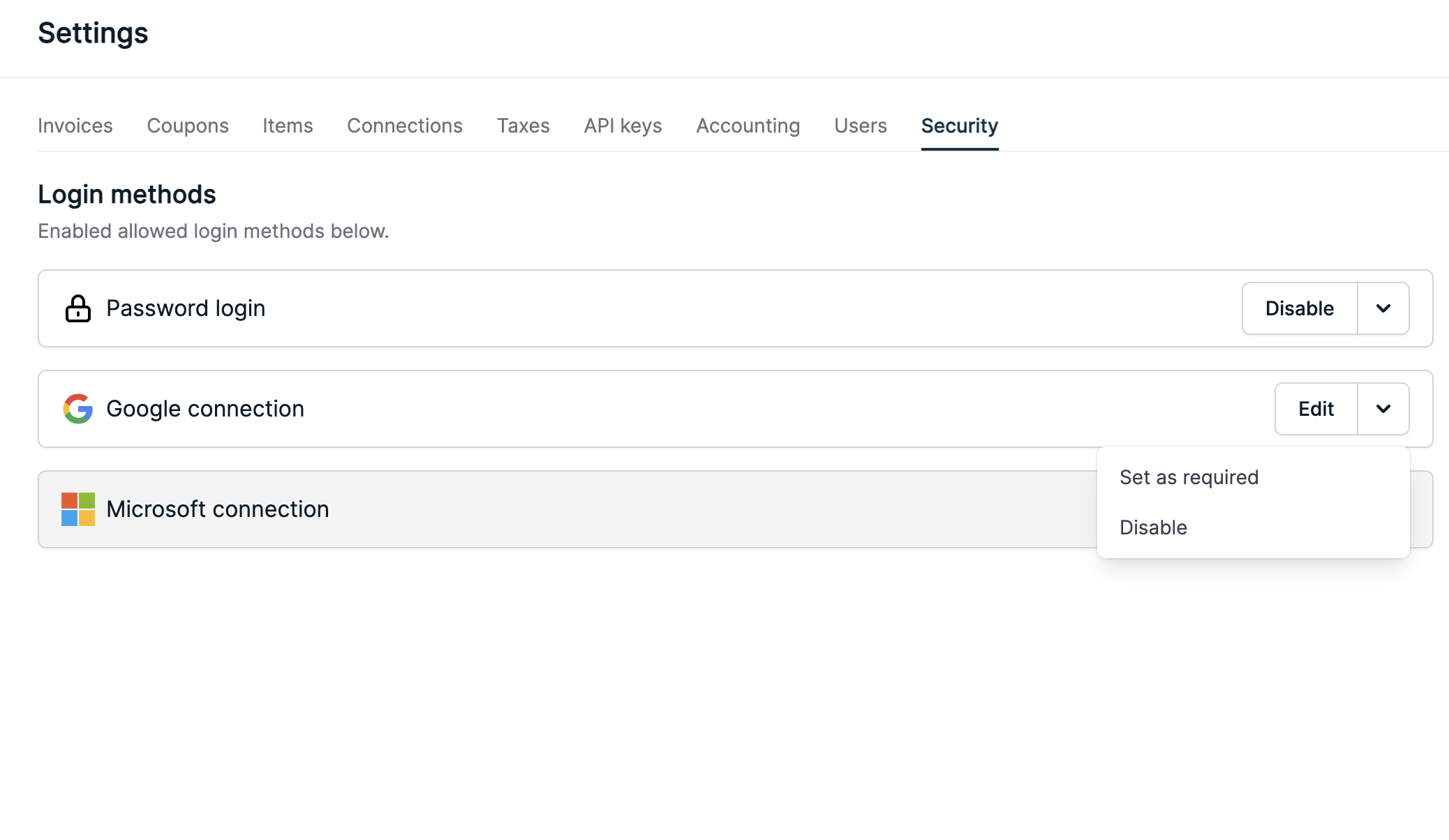 Set the login method to required if you want all users to login with that
method. This option is available on the login method's dropdown.
### Google and Microsoft login
You can use your existing Google or Microsoft account to login to Orb.
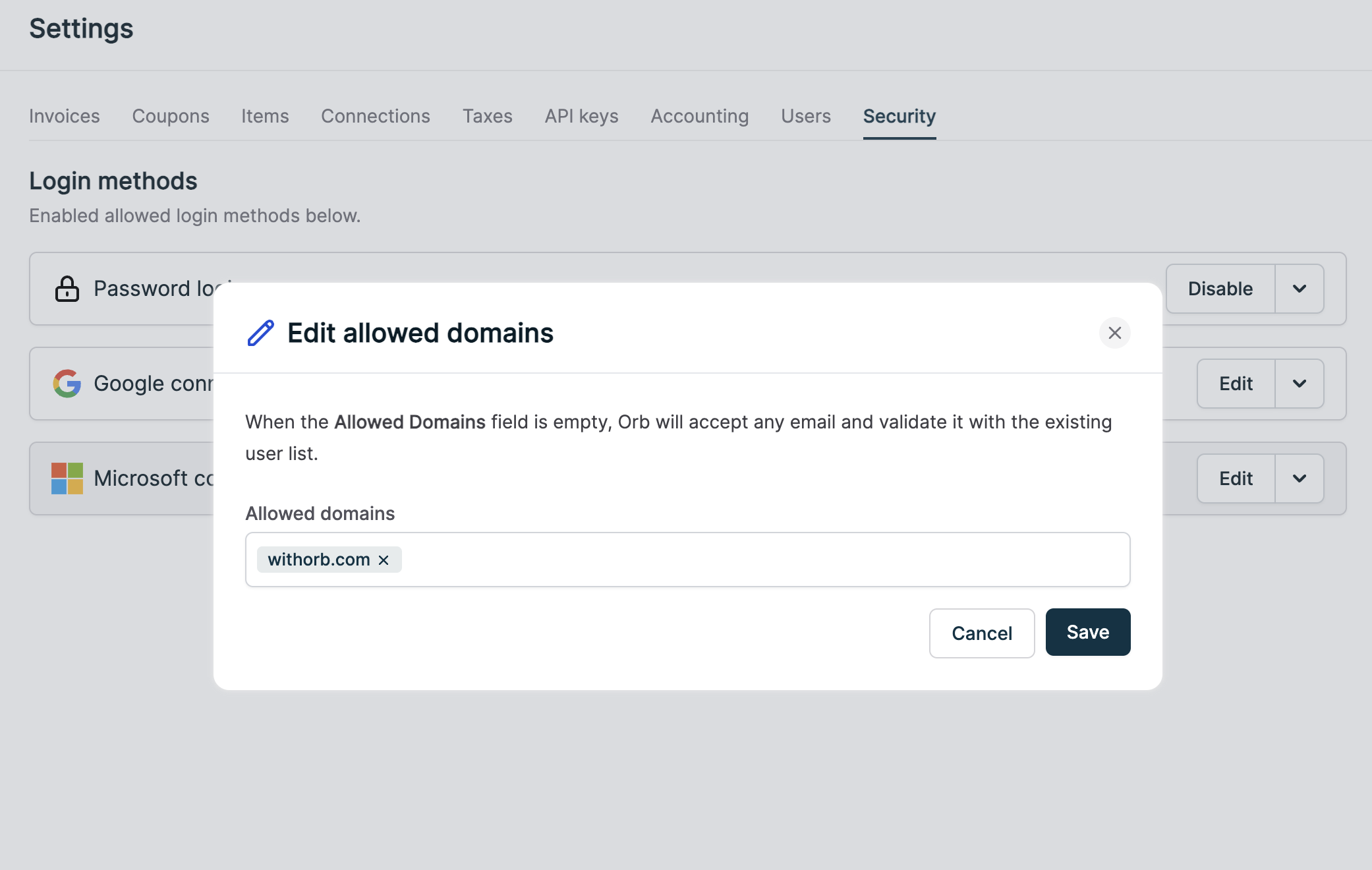
Login domains can be restricted to only allow login from those specified domains.
By default, specifying no domain allows for any domain to login.
Note that users will still need to have been invited ([see above](#inviting-users)) to login.
Set the login method to required if you want all users to login with that
method. This option is available on the login method's dropdown.
### Google and Microsoft login
You can use your existing Google or Microsoft account to login to Orb.
Login domains can be restricted to only allow login from those specified domains.
By default, specifying no domain allows for any domain to login.
Note that users will still need to have been invited ([see above](#inviting-users)) to login.
 ### SAML SSO
Login via SAML SSO is not supported by default on all plans. Please contact
your Orb representative if you have any questions.
Orb supports logging in via SAML SSO.
Connections can be created, edited, and deleted all within the "Security" page by an account admin.
### SAML SSO
Login via SAML SSO is not supported by default on all plans. Please contact
your Orb representative if you have any questions.
Orb supports logging in via SAML SSO.
Connections can be created, edited, and deleted all within the "Security" page by an account admin.
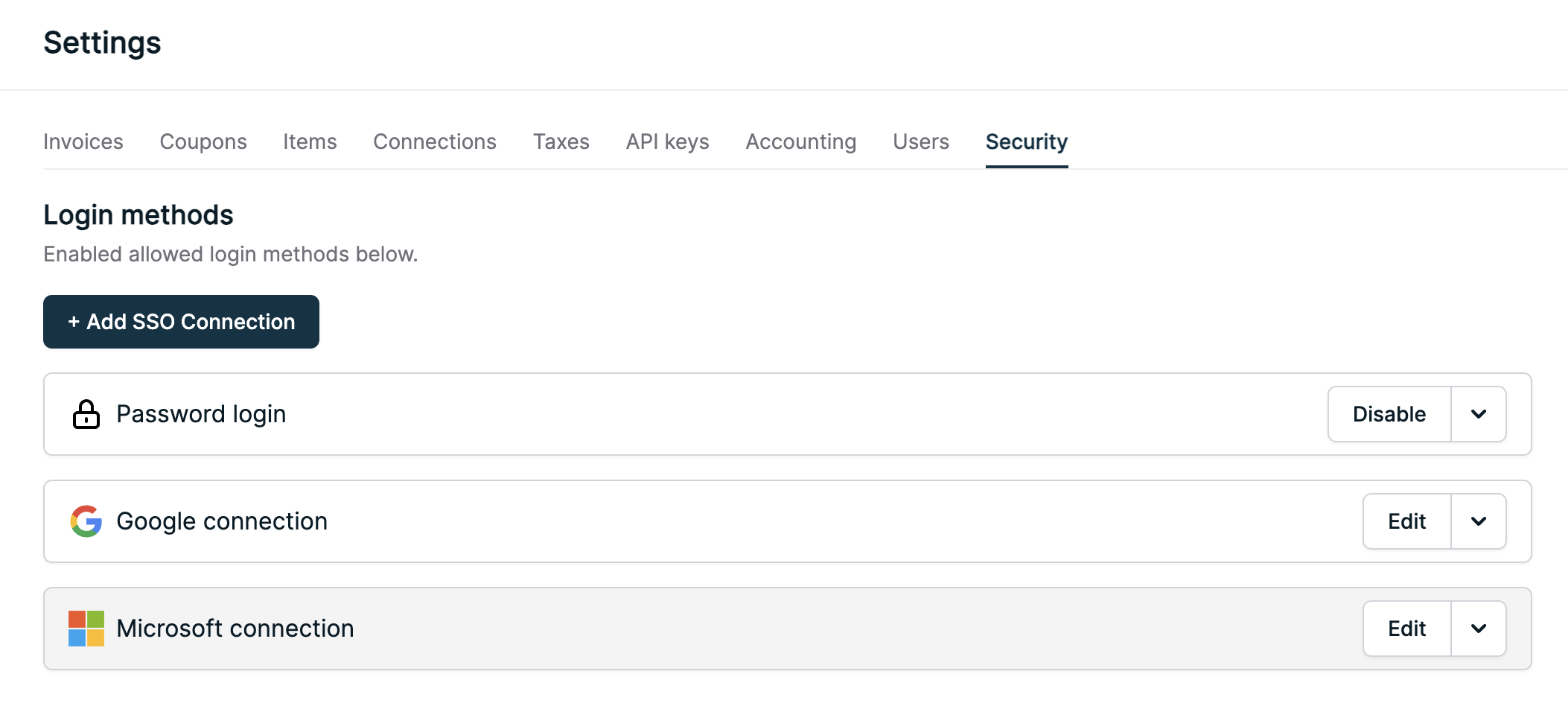 To create a connection, use the "+ Add SSO Connection" button.
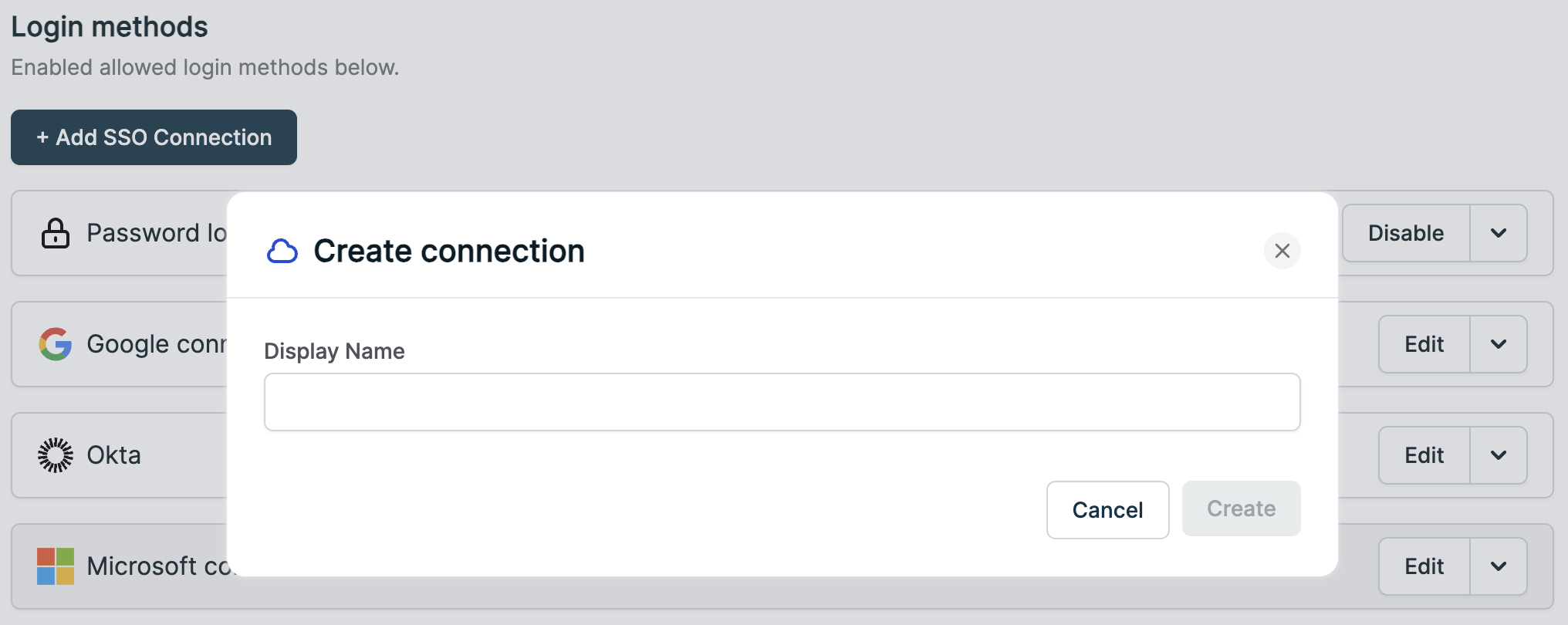 This connection will be added to the existing connection list in a disabled state.
Hitting "Configure" will present you with the following screen to setup your connection.
This connection will be added to the existing connection list in a disabled state.
Hitting "Configure" will present you with the following screen to setup your connection.
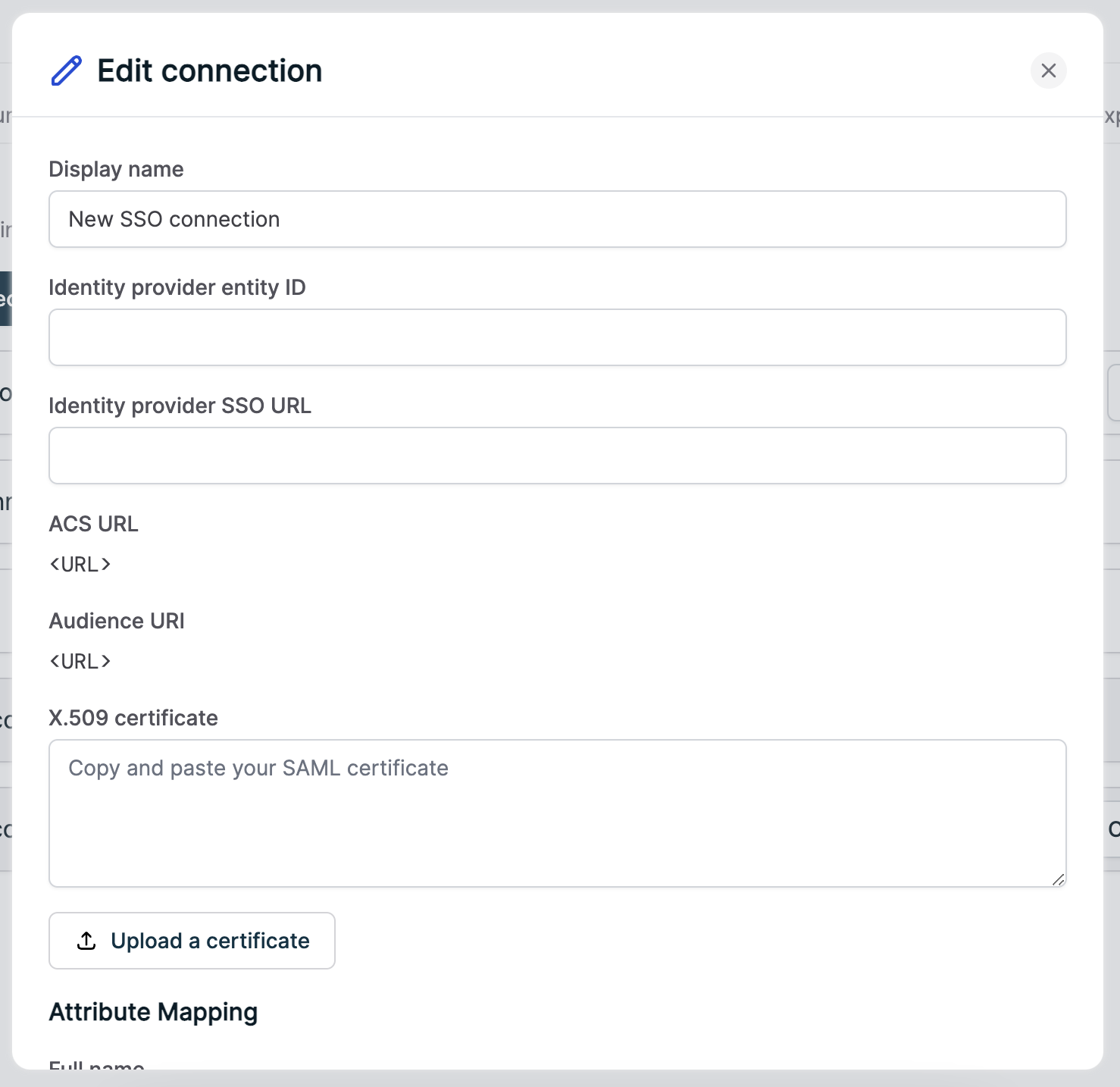 You can also use the "Edit" button on an existing SSO connection to edit its values.
SAML SSO connections requires a couple of values from the attribute mapping.
These values are:
1. Email
2. Name in either of the following forms:
* Full name
* First name and last name
### Login flow
You can login to your Orb app by visiting our [login page](https://app.withorb.com).
The flow to login is only a few, simple steps that ensures the security of the Orb product.
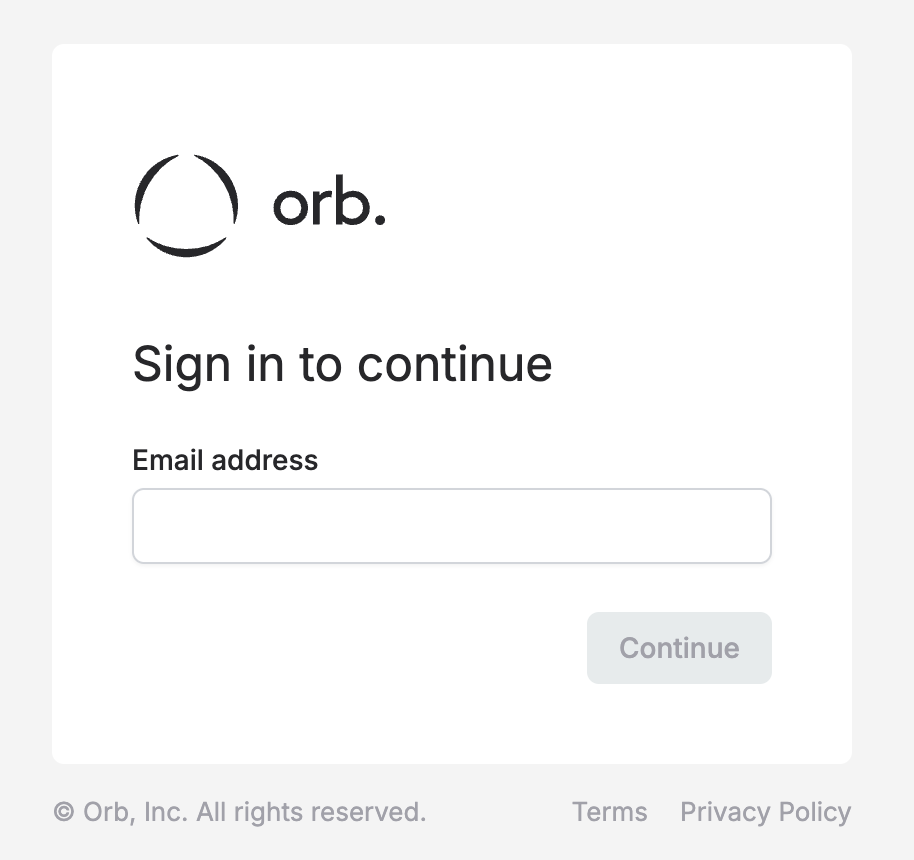
You'll first be prompted to enter your email before continuing.
Orb uses your email to determine which organizations to select for login.
You can also use the "Edit" button on an existing SSO connection to edit its values.
SAML SSO connections requires a couple of values from the attribute mapping.
These values are:
1. Email
2. Name in either of the following forms:
* Full name
* First name and last name
### Login flow
You can login to your Orb app by visiting our [login page](https://app.withorb.com).
The flow to login is only a few, simple steps that ensures the security of the Orb product.
You'll first be prompted to enter your email before continuing.
Orb uses your email to determine which organizations to select for login.
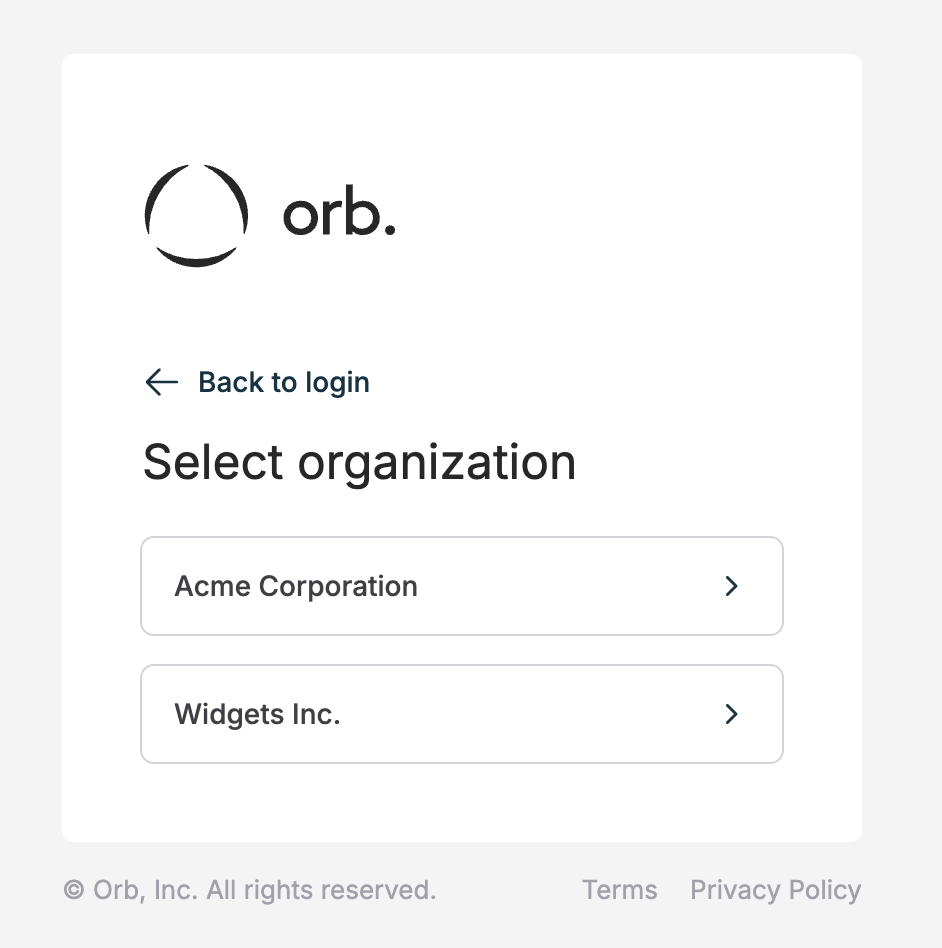
 If there are multiple Orb organizations associated with your email, you'll have to select the relevant organization you wish to login to.
If there is only one organization associated with your email, you will not see this page.
Multiple Orb organizations are not included with all Orb billing plans by
default. Please reach out to your Orb representative if you have any
questions.
If there are multiple Orb organizations associated with your email, you'll have to select the relevant organization you wish to login to.
If there is only one organization associated with your email, you will not see this page.
Multiple Orb organizations are not included with all Orb billing plans by
default. Please reach out to your Orb representative if you have any
questions.
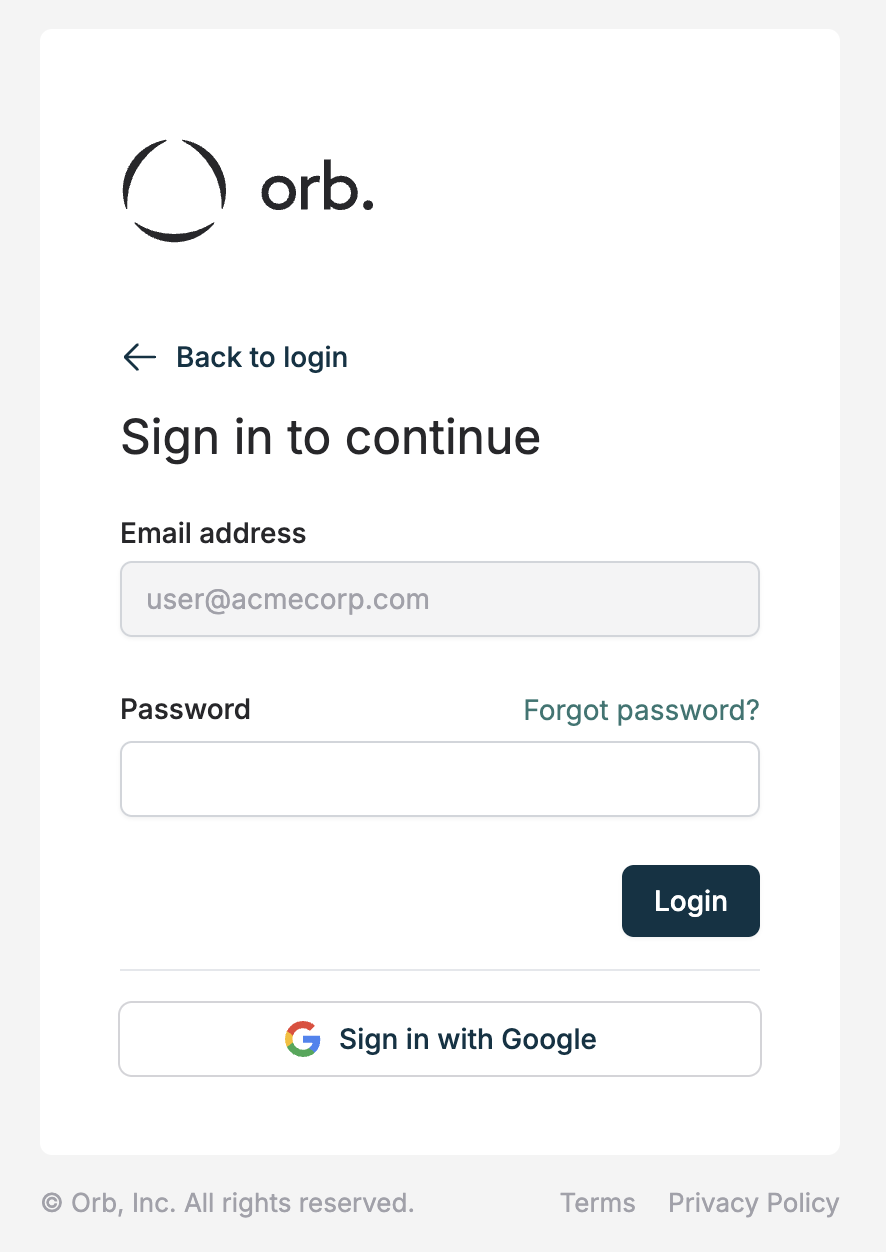
 Afterwards, you'll be prompted to login with your login method of choice.
If your organization has been configured with only one login method and that method is SAML SSO or OAuth, you'll be directly routed to the applicable login page.
Afterwards, you'll be prompted to login with your login method of choice.
If your organization has been configured with only one login method and that method is SAML SSO or OAuth, you'll be directly routed to the applicable login page.
 ## Switching organizations
As mentioned above, some customers may have access to multiple organizations.
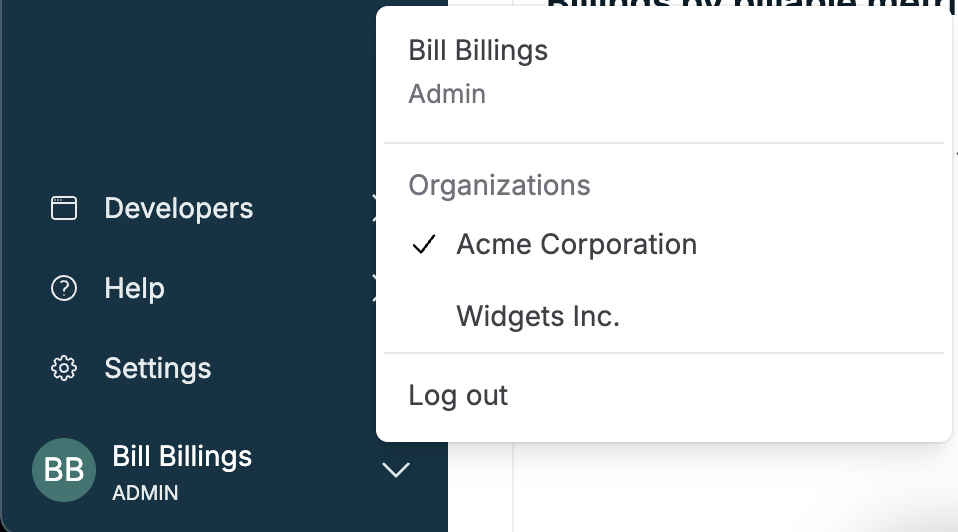
When this is the case, Orb's portal allows for easy switching between organizations by accessing the information menu in the bottom left of the Orb UI.
## Switching organizations
As mentioned above, some customers may have access to multiple organizations.
When this is the case, Orb's portal allows for easy switching between organizations by accessing the information menu in the bottom left of the Orb UI.